 Granular
Git Simplified for Vibe Coders
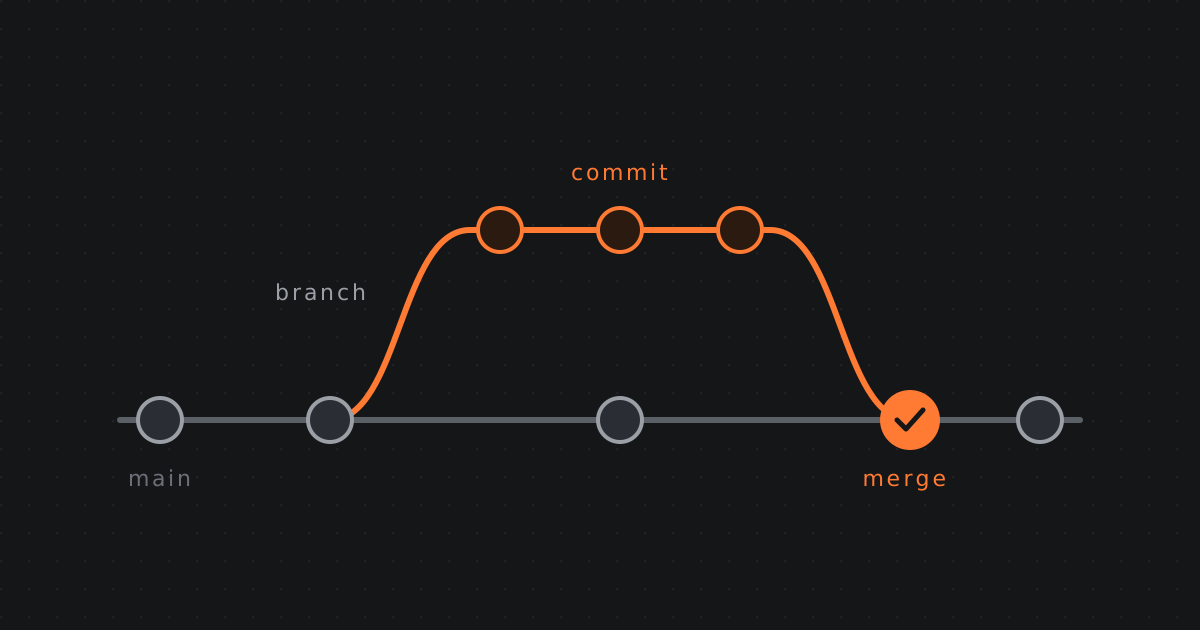
You are building with agents. They keep saying commit, push, branch, merge. This is the whole thing in simple terms, in order, with nothing assumed.
What Git is, and what it is not
What Git actually is
Git saves snapshots of one folder on your computer. You decide when to take one, and you write a label for each.
Three things in that sentence, and all three matter:
It snapshots the whole folder, not one file. Git records the state of every file in your project at that moment, together, as one thing. You don't save files individually.
You decide when. This is the part people assume wrongly. Git has no timer and no auto-save. It records absolutely nothing until you tell it to. Not when you save a file, not every ten minutes. Only when you say "now."
(When you're working with agents, the agent says "now" on your behalf. That's why it keeps telling you it's committing.)
You write the label. Each snapshot carries a short description you choose: "add checkout page," "fix broken login." That label is the entire difference between history you can read a month later and a list of meaningless entries.
Git then keeps every snapshot you took, forever. You can go back to any of them, compare any two, see exactly what changed between them, or split off and try something risky knowing the old version is sitting there untouched.
Git tracks folders, not code
You point Git at a folder, and that folder becomes a repo.
Repo is short for repository, and it is a word you will see constantly. It just means a folder Git is watching, plus all the history it has saved for it. Nothing more mysterious than that.
Git does not know or care what is inside it. Code, markdown notes, PNGs, a video, your shopping list. It tracks files. That is it.
Everything that follows applies to a folder of writing just as much as a folder of code.
The problem it solves for you specifically
An agent just changed 14 files. Something broke.
Which change broke it? Can you undo that one thing without losing the other 13? Can you see what the file looked like an hour ago?
Without Git: no, no, and no. With Git: all three, in seconds.
That's why this matters more for you than it did for developers ten years ago. Agents make a lot of changes very fast. Git is how you stay in control of changes you didn't type yourself.
What Git is not
It is not Dropbox or iCloud. Those sync the latest version of a file. If the latest version is broken, the broken one syncs everywhere. Git deliberately keeps every version you chose to save, and nothing overwrites the old ones.
It is not automatic. Git only records a version when you tell it to. That sounds like extra work, and it's actually the point: you decide what counts as a moment worth returning to. An automatic snapshot every 30 seconds would give you thousands of meaningless versions and no way to find the one you want.
It is not a backup, until you push. More on that under "How Git saves your work," and it's the most commonly misunderstood thing in this whole document.
Git is not GitHub
These get used interchangeably and they're different things.
- Git is the tool. It runs on your machine. It works completely offline.
- GitHub is a website that stores a copy of a Git project online. So are GitLab and Bitbucket.
You can use Git forever without GitHub. People do. GitHub is where you put a copy so it survives your laptop dying, and so other people can get at it.
Git was built in 2005 to manage Linux, a project with thousands of contributors changing the same files constantly. That origin explains a lot about it: it's built for many people changing one thing at once, without stepping on each other. Which is exactly what a folder full of agents looks like.
Where your work actually lives
The history lives in a folder called .git
.git is the history. Every version you've ever saved, in one folder.
That's the whole definition. And the important part: you never open it. You don't read it, edit it, or need to know what's inside. Every Git command reads and writes it for you.
Think of it as the archive room. You hand versions in and request them back. You don't go in and rearrange the shelves.
What your folder looks like
Say your project is called DaddyPants:
/DaddyPants/
│
├── .git/           ← THE HISTORY. Git's. Never open it.
├── .gitignore      ← a plain text file YOU write: "ignore these"
│
├── index.html      ← ↓ everything below is just YOUR stuff,
├── styles.css        arranged however you like
├── app.js
└── images/
    └── logo.png
One .git folder at the top. Everything else is yours.
Git imposes no structure whatsoever. Folders, subfolders, naming, nesting: all your choice. Git just records paths, so images/logo.png is simply a tracked path. Move it and Git records that it moved.
Why you've never seen it
Files and folders starting with a dot are hidden on Mac and Linux. In Finder, press Cmd + Shift + . to show them.
When you do, you'll see more than just Git. A typical project has a dozen hidden entries belonging to all sorts of tools. Only three belong to Git:
| What it is | |
|---|---|
.git/ | the history. Git owns this entirely. |
.gitignore | a text file you write, listing what Git should ignore |
.gitattributes | a text file you rarely touch |
Things like .env, .vscode or .venv belong to other tools. Hidden does not mean Git.
The two facts that make it click
Delete .git and you have plain files with no history. The folder still works, the code still runs, you just can't go back to anything.
Copy .git and you've copied the entire history. That's all a repo is.
The history isn't in the cloud and it isn't in an app. It's a folder sitting next to your files. One real project had 3,517 saved versions living in a .git folder of 3.6 GB, right there beside the code.
The four places your work moves through
  YOUR MACHINE   /DaddyPants/                             GITHUB
  ══════════════════════════════════════════════════      ═══════════

  ┌───────────┐   add    ┌─────────┐  commit  ┌─────────┐  push  ┌─────────┐
  │  WORKING  │ ───────▶ │ STAGING │ ───────▶ │ HISTORY │ ─────▶ │ REMOTE  │
  │  FOLDER   │          │         │          │         │        │         │
  └───────────┘          └─────────┘          └─────────┘        └─────────┘
   your actual            └──────── inside .git/ ─────────┘       GitHub's
   files, the ones         the archive room you never open        own copy
   you see and edit                                               of .git/

       ▲                                                              │
       └──────────────────────── pull ────────────────────────────────┘
Where .git sits in this
Only the first box is your real files. The middle two live inside .git, the archive room from the start of this section.
| Box | Where it actually is |
|---|---|
| Working folder | your files on disk. Outside .git. This is all you ever see. |
| Staging | inside .git |
| History | inside .git |
| Remote | GitHub's server, holding its own copy of .git |
So the moves read like this: add and commit both move things into .git, one step at a time. push copies from your .git into GitHub's .git. pull brings theirs back into yours.
Which is why your editor can never touch staging or history. They aren't files you can open. They're inside the archive room, and only Git commands go in there.
What "remote" means
Remote just means "not on this computer."
It is a copy of your project that lives somewhere else, almost always on a company's servers: GitHub, GitLab, Bitbucket. The name is doing exactly what it says. Your copy is local, theirs is remote.
It is not a special kind of thing. It is an ordinary repo, with its own .git, that happens to sit on a machine you can reach over the internet rather than the one on your desk.
You will also see the word origin. That is just the default nickname Git gives your main remote, so you don't type the full web address every time.
main            the branch on YOUR machine
origin/main     the same branch on THEIR server
When your Git panel says you are ahead 1, it means your main has one commit that origin/main does not. Two copies of the same branch, in two places, that drift apart until you push or pull.
What is actually in the working folder
WORKING FOLDER  =  your last commit
                +  every edit you have made since
                +  any new files you have created (untracked)
                -  anything you have deleted
Be precise about one thing: it holds complete files, not changes. Every file, whole, exactly as it is right now.
It is tempting to think of it as "the stuff since my last commit," which would make it sound like a list of differences. It isn't. There is no Git magic in there at all, it is just a folder of files. Delete .git entirely and your working folder looks identical.
Git works out what changed by comparing your files against the last commit. The difference is calculated on demand, never stored in your folder.
Why staging exists
You might edit 8 files but only 3 belong to one idea. Staging is where you pick.
This is why a good commit instruction says "stage only the relevant files, never a blanket add -A." add -A means "take everything," and it's how you end up with a commit called "fixes" containing four unrelated changes that can't be undone separately.
Before agents, developers did this with git add -p, which walks through each block of changes one at a time asking "include this one? y/n." Same idea. Your agent just types it for you now.
Commits are cheap, so make lots
Git does not store a full copy of your project per commit.
Real numbers from a real project:
If it stored a full copy each time:
  3,517 commits × 2,154 files  =  7,575,618 file copies

What it actually stored:
                                    23,490 objects
About 320× fewer. Each unique version of a file is stored once. A commit is mostly a list of pointers. Change one line in one file and you add one small object, not a new copy of everything.
There is no limit on commits. The Linux kernel has over 1.3 million in one repo. Commit early, commit often. It costs nothing.
What does cost: images and video. Text compresses brilliantly because Git stores "these 3 lines changed." A PNG can't be compressed that way, so every version is kept whole, forever, even after you delete the file.
How Git saves your work
"Saved" means two different things
This is the one that trips everyone up.
When you hit Cmd+S, the file is saved. It's on your disk. A restart won't lose it.
What you don't have yet is a version. Git has no record of it, so you can't go back to it or send it anywhere.
Saved to disk = yes. Saved to history = only when you commit.
The direction that surprises people
You edit a file. Nothing committed yet.

  ON DISK    →  your NEW edit          ← the change lives HERE
  IN .git    →  the OLD version        ← frozen, untouched
It's the opposite of most people's guess. Your editor writes to disk and nowhere else. It has no idea Git exists. Nothing enters .git until you commit.
| What it is | What's in it | |
|---|---|---|
| Disk | the workbench | whatever you last typed, live |
.git | the archive | frozen snapshots of finished versions |
So when Git says your folder is "dirty," it isn't a warning. It just means disk and archive currently disagree. That's the normal state of working.
The four states a file can be in
UNTRACKED   Git has never seen it. Invisible. Not protected.
    ↓ (add it once)
DIRTY       tracked, edited, not yet saved as a version
    ↓ (commit)
COMMITTED   in your local history. Safe from you.
    ↓ (push)
PUSHED      on GitHub. Safe from your laptop.
New files are not tracked automatically. You have to add a file once to enrol it. Until then Git ignores it completely, won't compare it, and wouldn't notice if it vanished.
Stash: the temporary shelf
There is one more place work can sit, and it solves a specific problem.
You are mid-change, nothing is finished, and you need to pull main or switch branches. Git refuses, because those would overwrite work it has no record of. You do not want to commit half-finished work just to get past it.
Stash is the way out. It lifts your uncommitted changes off the working folder and onto a shelf, leaving your folder clean. Do what you needed to do, then put them back.
git stash        take my uncommitted changes off and hold them
git stash pop    put them back, exactly as they were
It is genuinely useful, with one honest warning: a stash is easy to forget. It sits in .git, it never appears in your folder, and nothing reminds you it is there. Commits are visible in your history and stashes are not.
Rule of thumb: stash for minutes, commit for anything longer. If the work is worth keeping overnight, it is worth a commit.
What survives what
| Untracked | Dirty | Committed | Pushed | |
|---|---|---|---|---|
| Shut down / restart | safe | safe | safe | safe |
| Crash | safe | safe | safe | safe |
| Laptop lost or dies | gone | gone | gone | safe |
| You delete the folder | gone | gone | gone | safe |
| Undo your changes | safe | gone | safe | safe |
The rule worth memorising:
Committed protects you from yourself. Pushed protects you from your hardware.
Committing does not back anything up. Commits live on your machine.
Branches and worktrees
What is a branch?
A branch is a copy of your folder that you can change without touching the original.
You make one when you want to try something and you don't want to risk what already works. Rebuilding the checkout page. Trying a different layout. Letting an agent loose on something big.
Then one of two things happens:
- It worked. You merge it, and your changes join the original.
- It didn't. You delete the branch, and the original never knew anything happened.
That's the whole point of branches. A safe place to be wrong.
The original is almost always a branch called main. Nothing makes main special except that everyone agrees to treat it as the real one.
Only one branch is in your folder at a time
Here is the catch in "a copy of your folder": the copies take turns occupying your actual folder.
on branch  main      →  your files show main's last commit + your edits
switch to  feature   →  Git REWRITES your files to match feature
That is what switching branches physically does. It rewrites the files on your disk. Files can appear, vanish, or change content underneath you, and your editor may reload. Nothing is lost, the other branch's version is safe in .git, but your folder genuinely changes.
Two useful things follow from that:
- It is why Git refuses to switch branches when you have uncommitted changes that would be overwritten. It will not silently destroy work it has no record of. That refusal is a feature, not an obstacle. Commit first, and it lets you move.
- It is why worktrees exist, which is the next thing below.
And branches are not separate projects. One project holds all of its branches, in the one .git.
Ahead and behind
Counted in commits, always relative to something else:
- Ahead 3 means you have 3 commits the other line doesn't
- Behind 2 means the other line has 2 commits you don't
- Both at once is normal
The catch: there are two different ahead/behind questions.
1. SAME branch, two copies      your main  vs  GitHub's main
                                → "do I need to push or pull?"

2. TWO branches, same machine   your branch  vs  your main
                                → "am I current? ready to merge?"
Same arrows, different question, depending on where you're standing. This is why the numbers sometimes look contradictory. You can be clean (nothing uncommitted) and ahead 1 (one commit GitHub doesn't have) at the same time. They're measuring different things.
Clean + ahead is actually the best state to push from.
What is a worktree?
Normally one folder shows one branch, and switching branches changes the files under your feet.
A worktree gives you a second folder on disk showing a different branch, sharing the same .git.
My Project/            ← branch: main
My Project-feature/    ← branch: new-feature    (same .git, different folder)
This is how several agents work at once without colliding. Each gets its own folder and its own branch. Nobody overwrites anybody.
Warning: force-removing a worktree destroys uncommitted and untracked files inside it, permanently. Not recoverable, not even by Git. Always check a worktree has nothing unsaved before deleting it.
Merging: putting the work back together
Merge combines two branches. It takes the commits from one, joins them into the other, and makes a new commit holding both. Nothing is overwritten and nothing is thrown away.
A conflict happens when both branches changed the same lines. Git won't guess. It stops and asks a human which version wins. That's not a failure, it's Git refusing to silently throw away someone's work.
The safe order is always:
| Step | In simple terms | What it technically is | The prompt |
|---|---|---|---|
| 1. Catch up | bring main's latest into your branch | a merge, main → your branch | Pull main (local) or Pull from GitHub (remote) |
| 2. Check | make sure nothing broke | no Git command. Run it. Look at it. | none, this part is you |
| 3. Merge up | put your branch into main | a merge, your branch → main | Merge into main |
Merging a stale branch into main is how you overwrite other people's work.
Steps 1 and 3 are the same operation pointed in opposite directions. There is no separate "catch up" command in Git. Both are merges, and only the receiving branch changes. That is why both prompts warn about conflicts in identical words.
Step 2 has no command because Git cannot do it. Git can tell you the files combined cleanly. It cannot tell you the result still works. A clean merge with a broken app is completely normal, which is why "check" sits between the two merges rather than being skipped.
Pull is not the same as a pull request
These two get mixed up constantly, and they are not related.
Pull is a Git command. It brings commits from somewhere else down into your copy. It is really two steps in one: fetch (go and look at what they have) then merge (combine it into mine). It runs on your machine and needs no website.
A pull request, often shortened to PR, is a GitHub feature, not a Git one. It is a formal proposal: "here is my branch, please review it and merge it into main." It opens a page where people comment, request changes, and approve before anything is merged.
git pull        →  bring their work INTO mine, now, on my machine
pull request    →  ask a team to review MY work before it goes into main
A solo project with agents usually never touches pull requests. You merge your own branches, which is what Merge into main does. Pull requests earn their keep when other humans need to review work before it lands.
A "pull check" is not a thing either. If someone says that, they usually mean one of two real things: a dry run to see whether a merge would conflict before doing it, or Git's normal behaviour of stopping when it hits a conflict. Both prompts already do the second one: they stop and walk you through it rather than guessing.
The prompts your agent runs, and what each one does
These are the one-click prompts in Granular's Git panel. Each one below gives you what it does, when to reach for it, and then the exact words it sends to your agent.
Commit
What it does: saves a version. Disk into history.
Two guardrails are written into the wording. Pick only the relevant files, and write a real message. "Conventional Commit" just means a standard format like fix: login redirect, so the history reads properly months later.
Use when: you have finished something. Often.
The prompt:
Commit my current changes in this folder. Stage only the relevant files (never a blanket add -A), use a clear Conventional Commit message, and tell me exactly what you committed.
Push
What it does: sends your saved versions to GitHub. History into remote.
This is the one that actually backs you up. Until you push, everything exists on one machine.
"Never force-push" matters. Force-pushing overwrites the shared history and can delete other people's commits.
Use when: you want your work safe, or someone else needs it.
The prompt:
Push my committed changes on main up to GitHub. If the push is rejected because the branch is behind, pull and merge first. Never force-push.
Pull from GitHub
What it does: brings other people's work down to you. Remote into your machine.
This is step 1, catch up, pointed at GitHub's main.
Use when: someone else has pushed, or you are returning to a project after time away.
The prompt:
Pull the latest main from GitHub and merge it cleanly into my current branch. If there are conflicts, stop and walk me through them.
Pull main
What it does: catches your branch up with main, but the local main on your machine, not GitHub's.
Also step 1, catch up, pointed at your own main instead. Use this one when the work you need is already on your machine, sitting on another branch. That is the normal case when agents have been merging into main for you.
Use when: you are on a branch and main has moved on. Do this before merging up.
The prompt:
Bring my branch up to date with main: merge the latest local main into this branch so it is no longer behind. If there are conflicts, stop and walk me through them.
Merge into main
What it does: puts your finished branch work into main. This is step 3, merge up.
It verifies you are current before merging. That is the guardrail against merging something stale over the top of newer work.
Use when: a piece of work is done and checked.
The prompt:
Merge this branch into main. First verify it is based on the current main, report exactly which files the merge brings, and if there is a conflict stop and walk me through it. Do not force anything.
Wrap up worktrees
What it does: cleans up after a batch of agents. The heavy one, because it merges and deletes.
The safety is in the wording: it only deletes what merged cleanly, and skips anything still working or conflicted. Worth remembering that force-removing a worktree destroys uncommitted and untracked files inside it permanently, which is exactly what this prompt is written to avoid.
Use when: several agents have finished and you want it all folded in.
The prompt:
Wrap up all my other worktrees of this repo into main, one at a time. For each: commit any uncommitted work, merge its branch into main, then remove the worktree and delete its branch only if it merged cleanly. Skip any worktree with a conflict or still actively working, and tell me why.
The whole thing on one page
Everything above, in one picture.
  YOUR MACHINE
  ═══════════════════════════════════════════════════════════════════

   ┌────────────┐        ┌──────────────────┐   ┌──────────────────┐
   │   STASH    │◀─stash─│  WORKING FOLDER  │   │     WORKTREE     │
   │            │        │   /DaddyPants/   │   │  /DaddyPants-2/  │
   │ temporary  │        │                  │   │   (optional)     │
   │ shelf for  │─pop───▶│ showing: main    │   │ showing: feature │
   └────────────┘        └────────┬─────────┘   └────────┬─────────┘
                                  │                      │
                                 add                    add
                                  │                      │
   ┌──────────────────────────────▼──── .git/ ───────────▼──────────┐
   │        ONE archive room, shared by BOTH folders above          │
   │                                                                │
   │  ┌────────────┐   commit   ┌────────────────────────────────┐  │
   │  │  STAGING   │ ─────────▶ │            HISTORY             │  │
   │  │ what you   │            │                                │  │
   │  │ picked for │            │  main     ●──●──●──────◆       │  │
   │  │ this save  │            │                 ╲     ╱        │  │
   │  └────────────┘            │  feature         ●───●         │  │
   │                            │                                │  │
   │                            │  ● a commit                    │  │
   │                            │  ◆ the MERGE COMMIT: a new     │  │
   │                            │    save point on main that     │  │
   │                            │    contains both lines         │  │
   │                            │                                │  │
   │                            │  ALL branches live in here     │  │
   │                            └────────────────────────────────┘  │
   └──────────────────┬───────────────────────┬─────────────────────┘
                      ▲                       │
                 pull │                       │ push
        THEIR commits │                       │ MY commits
           come to me │                       │ go to them
                      │                       ▼
  ═══════════════════════════════════════════════════════════════════
  GITHUB  /  GITLAB  /  BITBUCKET

            ┌───────────────────────────────────────────────┐
            │              REMOTE  ("origin")               │
            │                                               │
            │   the same project, on someone else's         │
            │   servers rather than your computer.          │
            │   an ordinary .git, just not local.           │
            └───────────────────────────────────────────────┘
Two separate lines on purpose. Push and pull are not one connection you toggle, they are two independent moves. You can push without ever pulling, pull without ever pushing, and being behind on one says nothing about the other.
Reading the branches in that picture
Notice where branches are drawn: inside HISTORY, not as boxes of their own.
That is the whole truth about branches. They are different lines of saved versions in the same archive, which is exactly why switching one rewrites your folder.
The ● marks are commits. feature splits off from main, gains two of its own, then the lines rejoin.
A merge is not a deletion or an overwrite. It makes a new commit.
That is what the ◆ is. When you merge feature into main, Git does not paste one branch over the other. It creates one new save point on main whose contents are both lines combined. Every commit on both sides is still there, untouched, with its own message and date. You can still see exactly who changed what and when.
Which explains two things that otherwise seem odd:
- A conflict is Git asking you to finish building that new commit. It has combined everything it could, and the lines it cannot decide about are left for you. Once you answer, the merge commit gets made.
featurestill exists afterwards. Merging copies its work into main. It does not consume the branch. That is why the Wrap up prompt deletes merged branches as a separate, deliberate step.
And notice where all of this happens: inside .git, on your machine. Nothing reaches GitHub until you push, so a merge that goes wrong is still yours alone and nobody else has seen it.
Reading the worktree in that picture
The second folder on the right is optional, and most people never have one.
Look at what it does and does not touch. It is a separate folder, so it has its own working files. But its add arrow points into the same .git. One archive, two folders, two branches open at once, no switching.
Every command, and what it moves
| Command | Moves | Direction |
|---|---|---|
add | working folder → staging | picking what to save |
commit | staging → history | making the version |
push | your history → remote | backing it up, sharing it |
pull | remote → your history and folder | getting their work |
stash | working folder → shelf | parking unfinished work |
stash pop | shelf → working folder | picking it back up |
merge | one branch → another, inside history | joining work together |
checkout | history → working folder | switching which branch you see |
Every one of those except push and pull happens entirely on your machine, with no internet at all.
The five things to actually remember
.gitis a folder next to your files. That's the whole history.- Saved to disk ≠ saved to history. Commit makes the version.
- Committed protects you from yourself. Pushed protects you from your laptop.
- New files aren't tracked until you add them once. "Clean" doesn't mean backed up.
- Commits are nearly free. Make far more than feels necessary. The cost of too many is nothing. The cost of too few is losing work.
The one habit worth building
Push before you stop for the day.
Not commit. Push. Committing leaves everything on one machine, and that machine is the single point of failure for every hour you've worked.
Where this fits with Granular
Every prompt in this article is a button in an app we build.
Granular is the agentic terminal. Plug in your existing AI subscriptions and tools, like Claude and Codex, and it runs a whole team of agents in real terminals on your Mac, in front of you. Real files you own, in a folder you can open in Finder. No lock-in.
A few things worth knowing:
- Bring your own AI. Use your existing Claude, Codex or Gemini subscription. Or run on Granular Hosted and skip the setup.
- Connect your real accounts. MCP connectors plug in the tools you already use, and API keys live in an encrypted Vault, so agents can use a key without it ever leaving your machine or landing in a file.
- Git is built in. The six prompts above are one click, and they read your actual repo state, so the panel only offers what makes sense right now.
- Run several agents at once. Each gets its own worktree, which is exactly why this article bothered to explain them. That is not a detail, it is what makes parallel agents safe.
The reason we wrote this guide is simple. Agents commit, push and merge on your behalf dozens of times a day. You should know what they are doing to your work, whether you use our app or not.
Related reading
 2026-06-26 · Guide, DesignHow to build a landing page with AI in 10 minutesA practical walkthrough: go from a single sentence to a published landing page using Granular, describe it, refine it live, and ship it to your domain.
 2026-09-11 · Research, AgentsBoss agents and worker agents: how to cut AI token costs by up to 80%A smart boss model plans and reviews while cheaper worker models do the reading and typing. Modeled costs for coding, research, writing and everyday tasks with Claude, GPT-5 and DeepSeek.
 2026-10-06 · Research, BrainThe company brain: four months of running Granular on linked notesHow a designer runs a software company from one folder of markdown notes that AI agents read and write: how it evolved, why it works, and how it compares to ADRs and changelogs.