 Granular
Stop reading your agent's plans. Make it show you a scratch file.
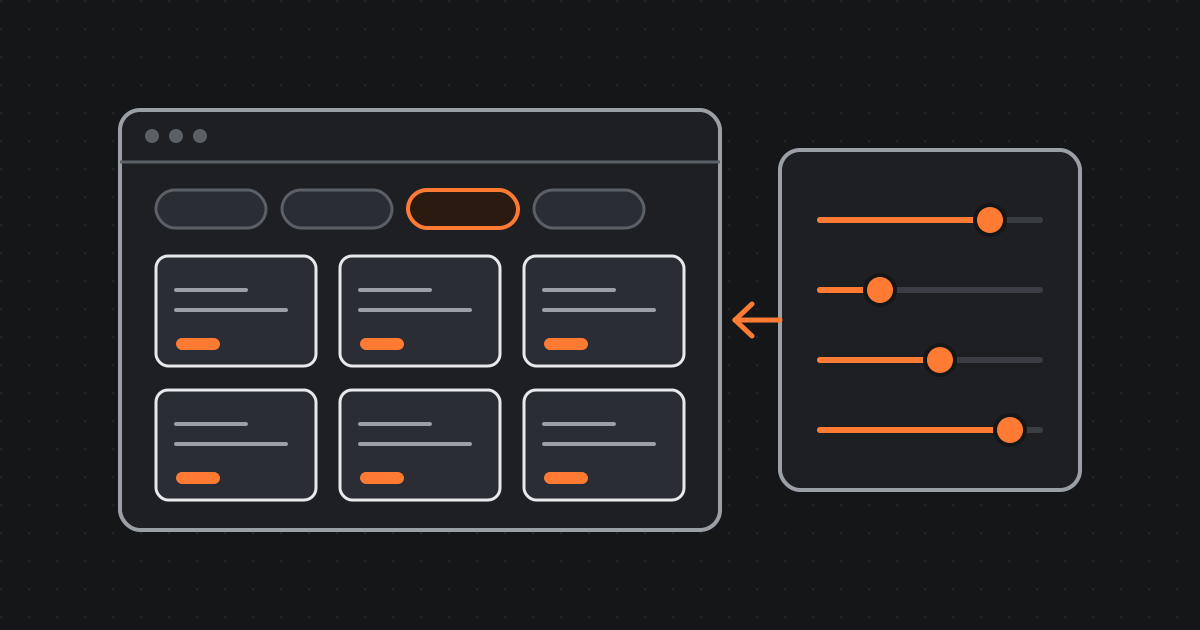
Instead of reading a long technical plan you can't judge, ask your agent for one throwaway HTML file that looks like your real app, built on its real styles. Click through every state. Fix it by looking. When it's right, the agent builds the real thing with the styling already decided. Below: the prompts to copy, and five scratch files from how we built Granular.
The problem with plans you can't judge
Ask an AI agent like Claude Code or Codex to plan a new screen and you get a plan. Often a long one: components, states, data, edge cases, two thousand careful words.
It's probably correct. You just can't judge it. If you are vibe coding, a wall of technical spec tells you almost nothing about whether the thing will feel right, and you only find out once you are deep in the build, when changing it costs the most.
You can't judge a spec. But you can judge an experience. So skip the plan and ask for the experience instead.
What a scratch file is
A scratch file is one throwaway HTML page that looks exactly like the screen you are about to build, made before any real code changes.
HTML is the language web pages are written in. A single HTML file opens in any browser with a double click: no server, no setup, nothing to install. That is why it makes a good sketchpad.
Three things make it work:
- It is built on your app's real styles. The agent links the same stylesheet, colours, fonts and spacing your app already uses. So what you approve is what ships, not a lookalike.
- Every state is clickable. A row of buttons switches between empty, loading, full and error, plus whatever else the screen can be: one item, a hundred items, a very long name, no connection. You see the cases nobody thinks about until a user hits them.
- It is throwaway. It lives in a
scratch/folder, never ships, and nothing in your real app changes while you play with it.
Why HTML and not a picture or a description? Agents write HTML brilliantly. It is one of the most common formats on the web, so a scratch file is usually right first try. And you correct it by looking: you glance at it and say "make the sidebar narrower" instead of re-reading a spec and writing paragraphs of corrections. Fewer round trips, and each one is about something you can actually see.
How to use one, step by step
- Before the agent writes real code, ask for a scratch file. Use the prompt in the next section. Say what the screen is for and what it shows.
- Open it and click every state. Empty, loading, full, error, and the strange ones. Most of what you would have missed lives in the strange ones.
- Fix it by looking. Point at what is wrong in simple words: "the buttons feel crowded", "the error state needs a way out", "loading should keep the layout so nothing jumps". Ask for a new version. Repeat until it's right.
- Build it for real. Tell the agent the scratch file is approved and to build the real screen from it. The look is already decided, so the agent only has to wire up the layout and how it works.
- Keep the file. It becomes the reference for what the screen is meant to look like. When something drifts later, you have the original to compare against.
The prompts to copy
Paste these into Claude Code, Codex or any agent that can write files. Swap the part in brackets for your own screen.
A. A scratch file with every state
Before you build [the screen], make me a scratch file instead of a plan.

Make ONE self-contained HTML file in a scratch/ folder that looks exactly
like this screen will look in my app. Use my app's real styles: link or
copy the same stylesheet, colours, fonts and spacing the app already uses.
Do not invent new ones.

Add a row of buttons along the top that switches between every state this
screen can be in: empty, loading, full, error, and any others you can think
of (one item, a hundred items, a very long name, no connection). Use
realistic fake data.

Do not change the real app yet. When the file is ready, open it so I can
click through it.
When it's right:
The scratch file is approved. Build the real [screen] from it, matching
it exactly. Keep the scratch file as the reference.
B. A scratch file with live controls
Before this animation goes into the app, make a scratch file to tune it.

Make ONE self-contained HTML file in a scratch/ folder. Show the effect
inside a small mock of the real screen, at its real size, in my app's
real colours.

Give every value that shapes the look its own live slider (for example
speed, size, density, glow, randomness), with the current number printed
next to each one. Add a "Copy values" button that copies them all
as a short list.

Do not change the real app yet.
When it looks right, press Copy values and paste the list back:
Build it for real with exactly these values: [paste]. Keep them as named
constants, with a comment saying they came from the scratch file.
Live controls, for the moments you can only judge by eye
Some things you can't describe well enough for an agent to get right. A loading animation, a glow, the speed of a little working indicator. "Make it a bit calmer" means something different to you than to a model, and every guess costs a round trip.
So don't describe it. Ask the agent to put live sliders for the effect's own settings inside the scratch file: whatever that effect needs. For a dot pattern that might be density, speed, randomness and glow. Then you drag until it feels right.
The trick is the last step. Those settings are just numbers, so you can snapshot them and paste them back. The agent ships exactly the look you dialled in, not its guess at what you meant.
These little decorative moments are what separate a product that feels stale from one that feels alive. They have never been easier to get right.
Five scratch files from how we built Granular
We build Granular this way every week. These are real files from our repository, screenshotted as they are, with the decision each one let us make.
1. The File Viewer: one page for every icon and colour
While we designed the Files panel's icons and colours, the agent built a single reference page showing every folder icon, special file, tag and colour, how a typical project reads in the panel, and every control and state. The page is generated from the app's own code: the tag wording and colour assignments are imported straight from it, so the reference can't drift from the build.
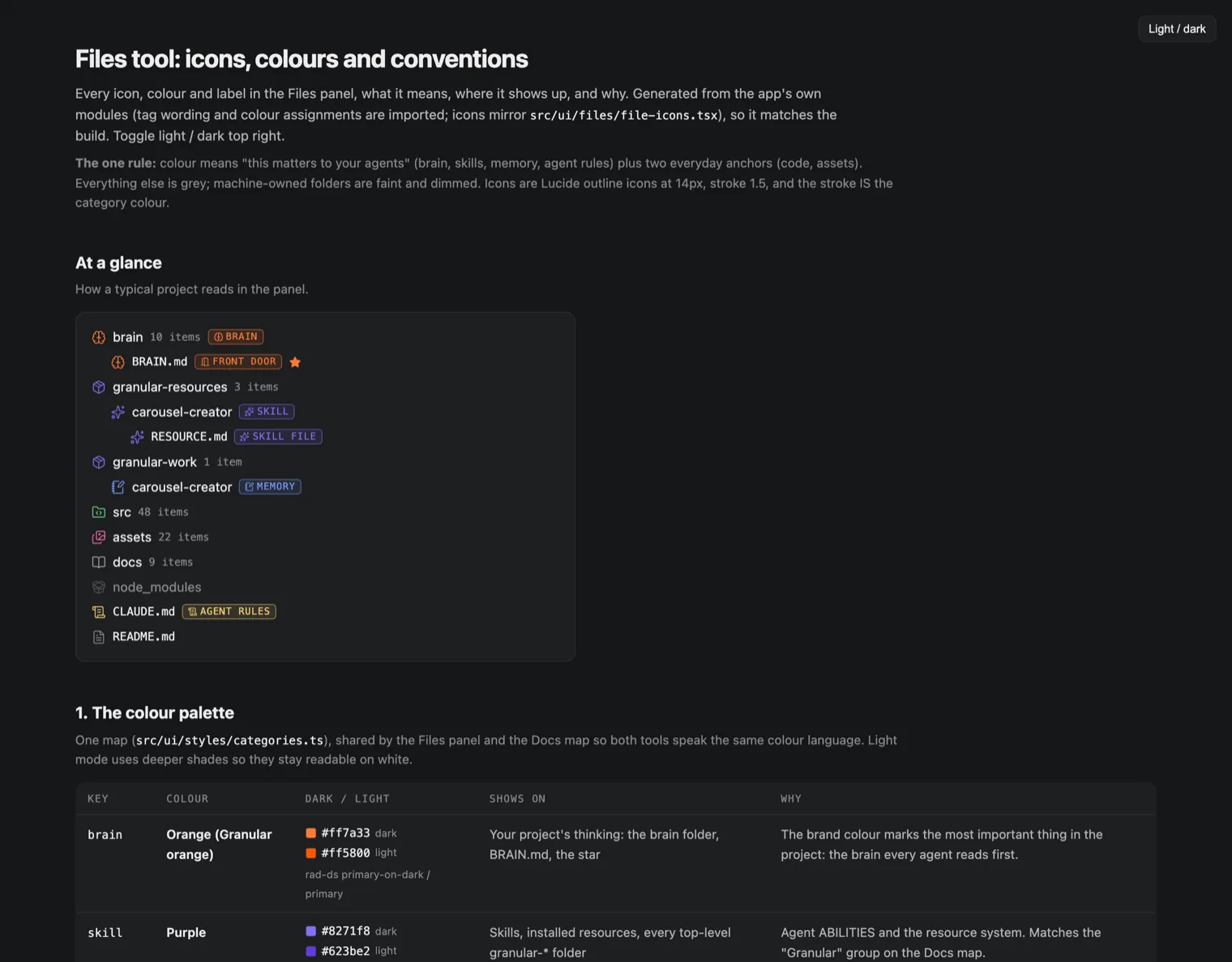
Seeing it all on one page let us settle one rule: colour means "this matters to your agents" (the brain, skills, memory, agent rules) plus two everyday anchors, code and assets. Everything else stays grey, and machine-owned folders like dependencies are faint and dimmed. The same palette now colours the Docs map too, so both tools speak one colour language.
2. Connectors: the apps library and the app detail
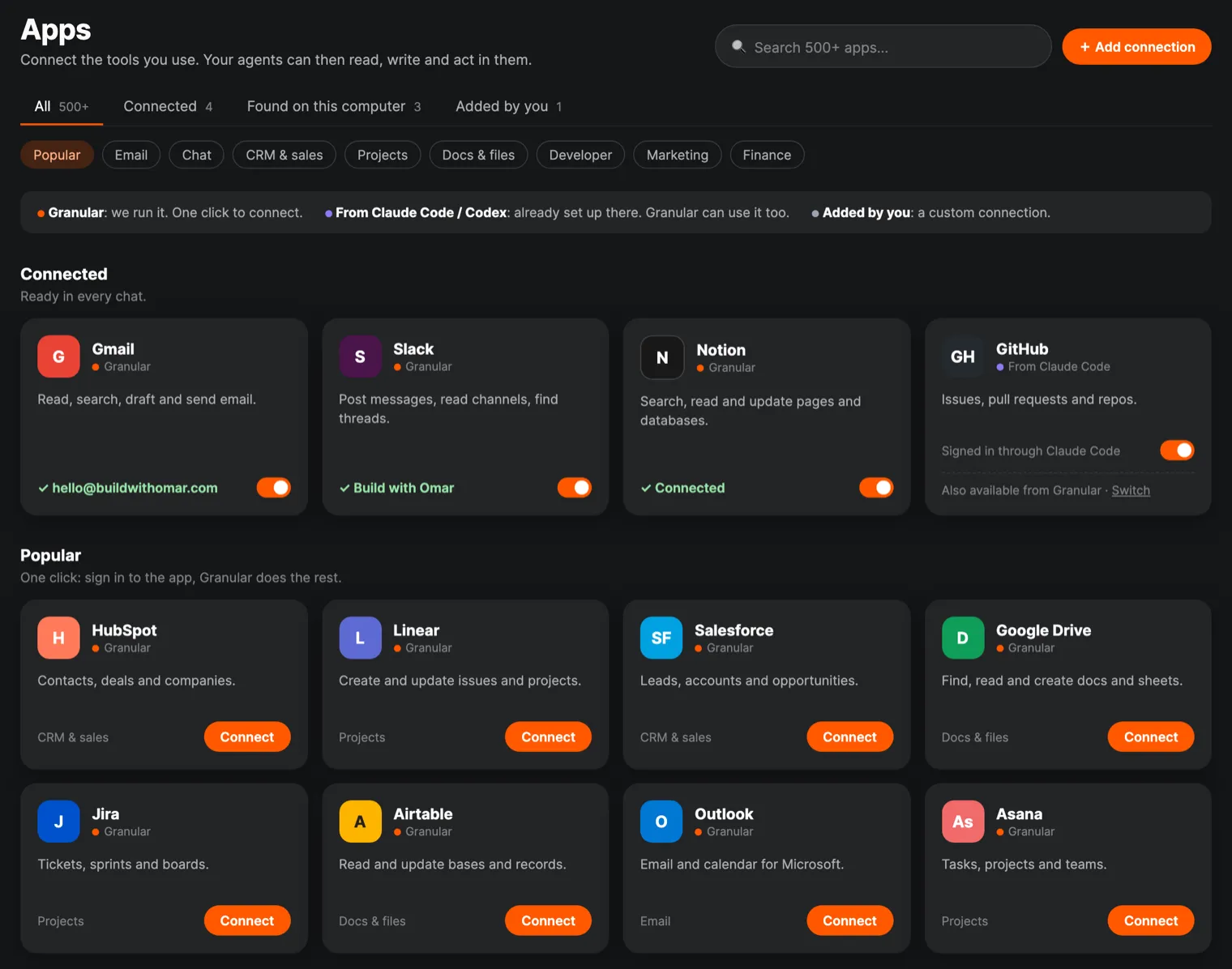
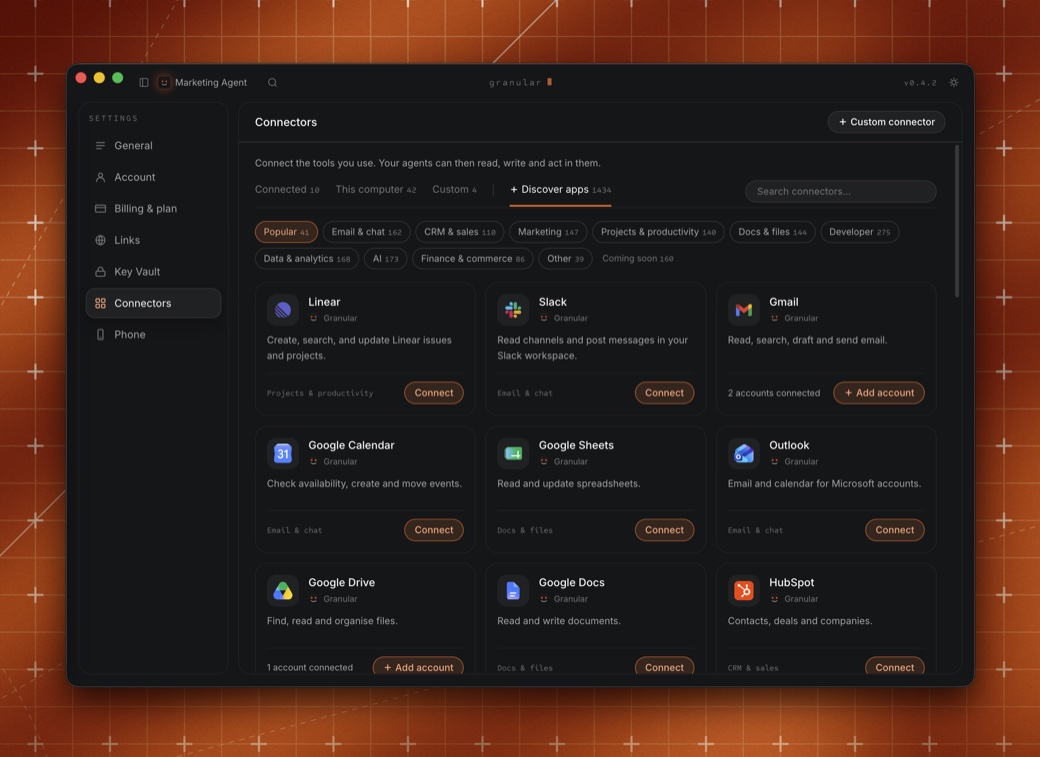
For connectors, the agent built two scratch files, both linking the app's real design system stylesheet. The first is the apps library: tabs for all apps, connected, found on this computer and added by you, and cards in every state, connected, ready to connect, and switched off.
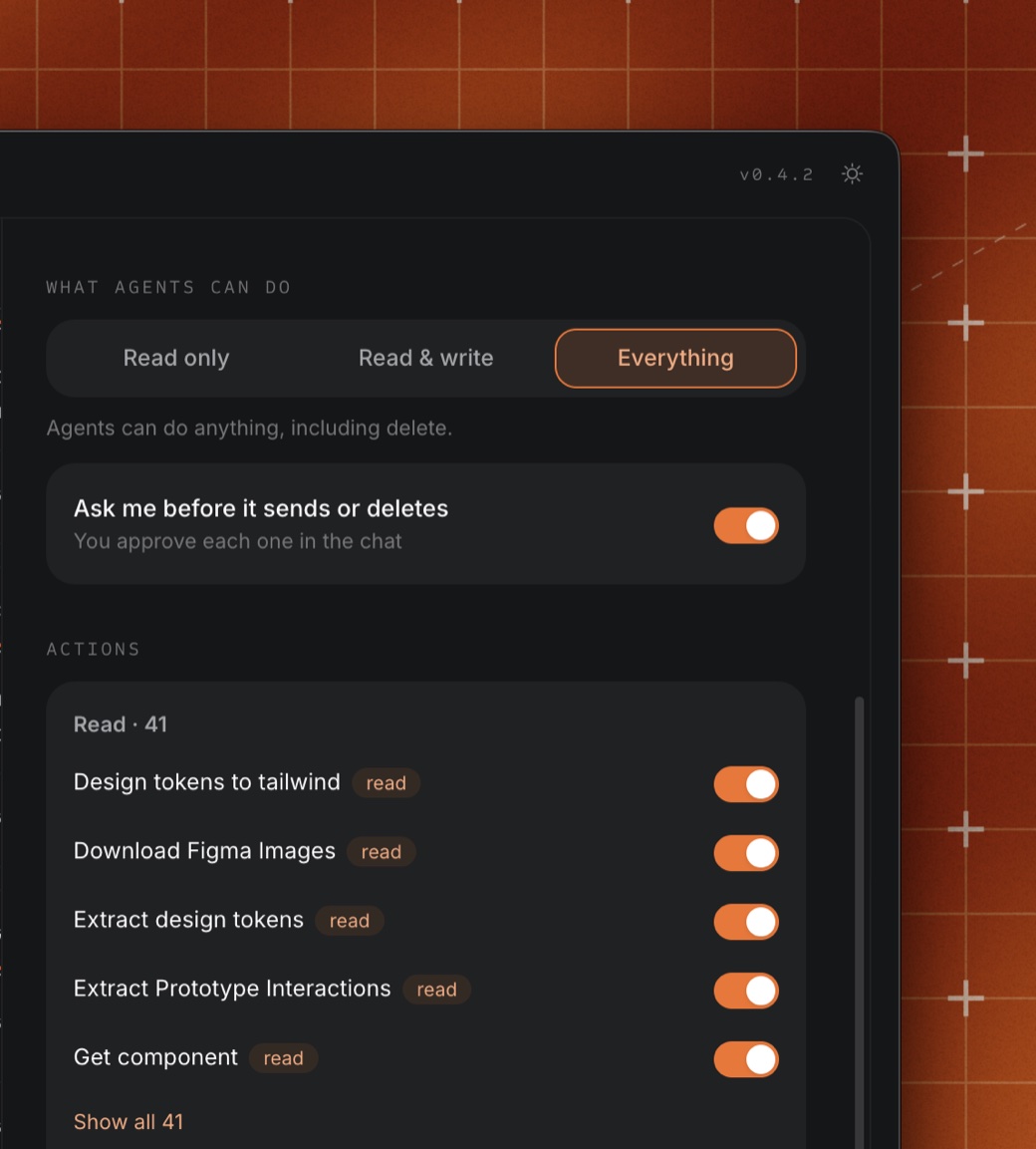
The second is the detail panel for a single app, here Gmail: which accounts are connected, what agents may do, and the individual actions underneath.
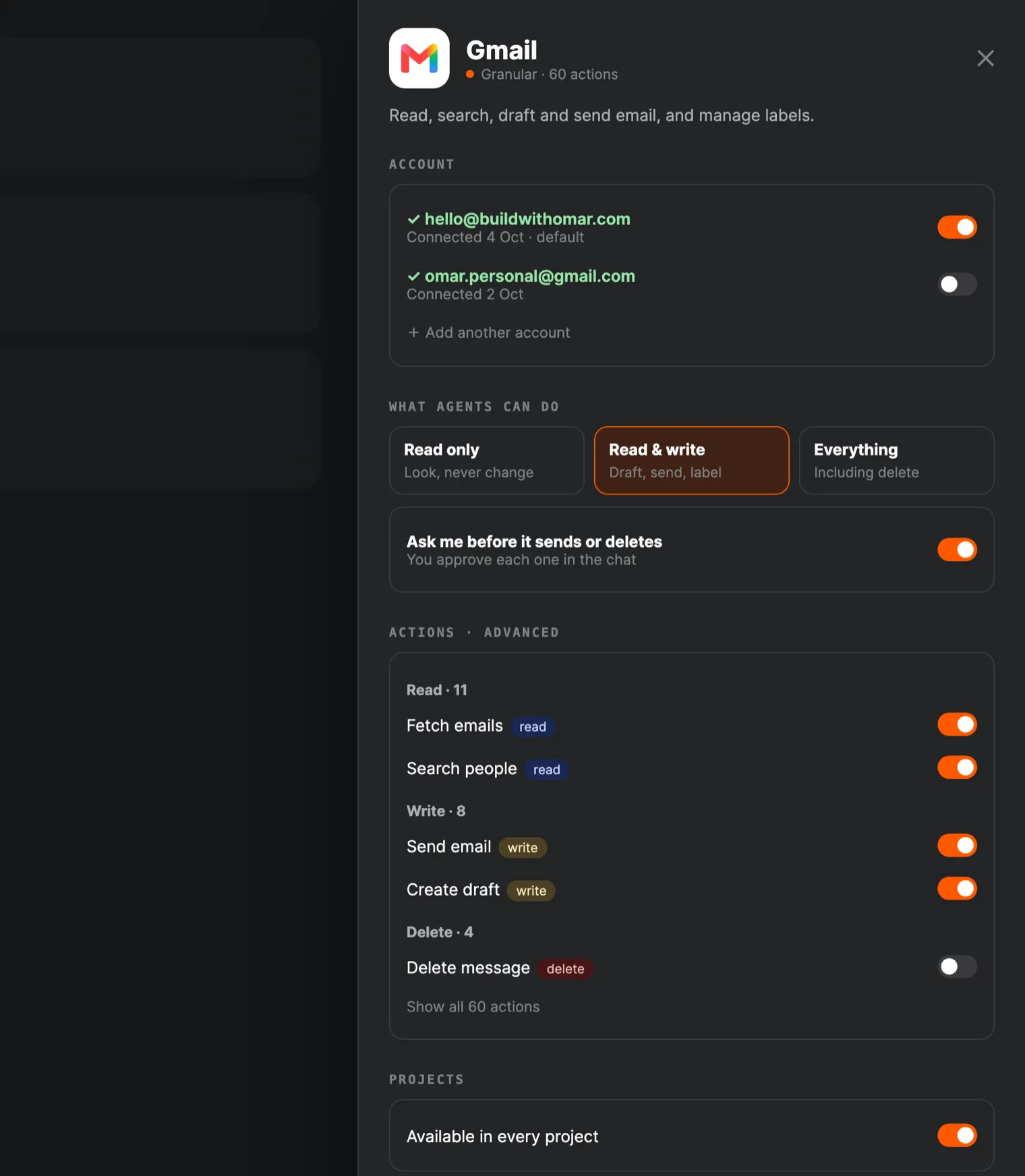
Clicking through both made two decisions easy. Every connection says where it comes from (Granular, an app already set up in Claude Code or Codex, or one you added yourself), so nobody wonders why an app is already connected. And permissions read as three plain levels, read only, read and write, or everything, with a switch to approve each send or delete in the chat, while the long list of individual actions stays tucked under "advanced". Both decisions are in the shipped app.
Here is where they landed, in Granular 0.4.2:
3. Git prompts: every situation, one tab each
Granular has one-click Git prompts: short instructions that tell your agent to commit, catch up or merge. Which ones should you see? It depends on where you are: the main folder, a worktree (a separate copy of the project a worker agent uses), a boss session with workers, a project with no online copy at all. A written plan for that is a table nobody can picture.
So the scratch file has a tab for each of six situations. Click one and you see exactly what the prompt list would show there. Click a row and you read the exact words the agent would receive.
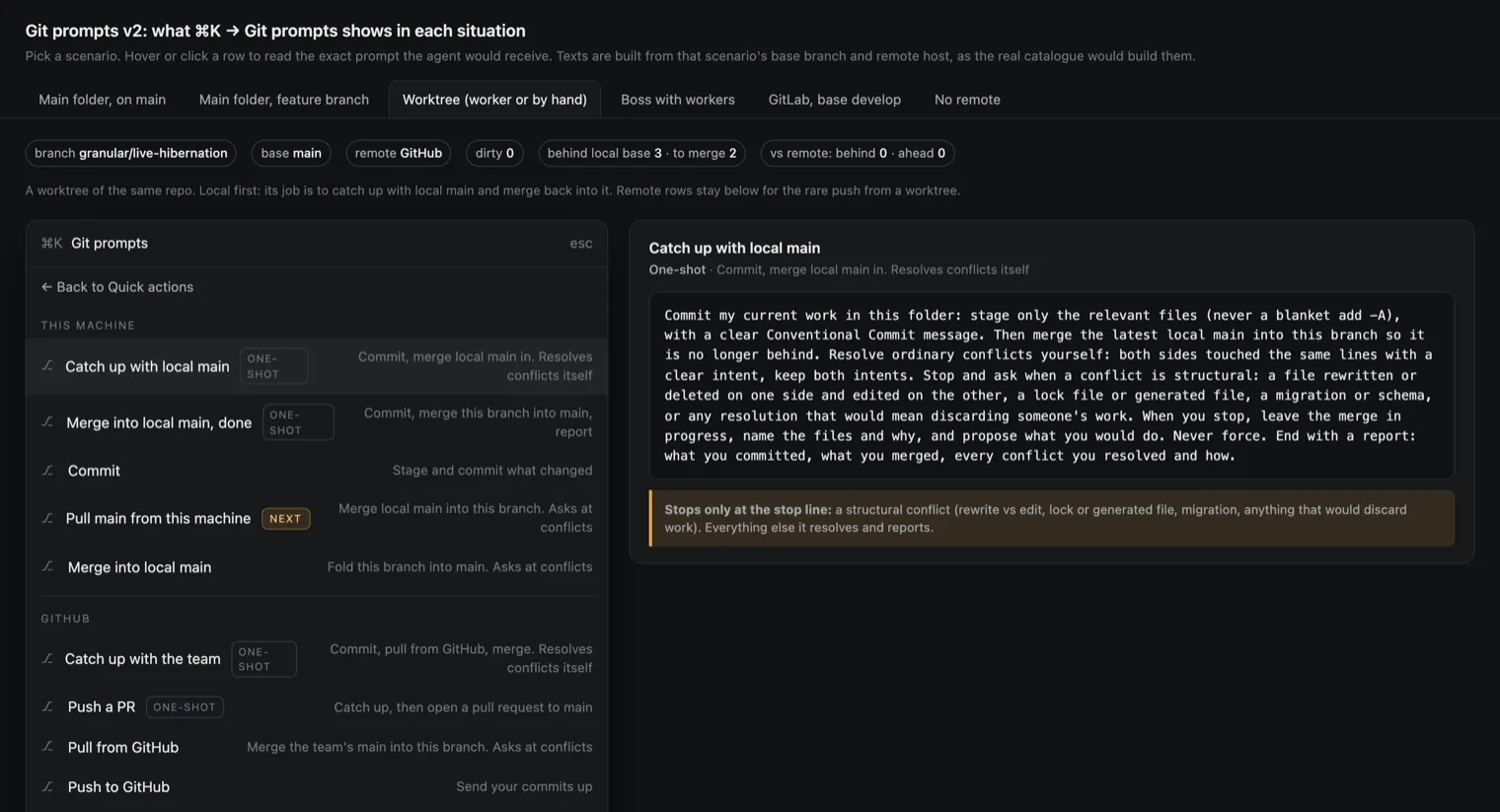
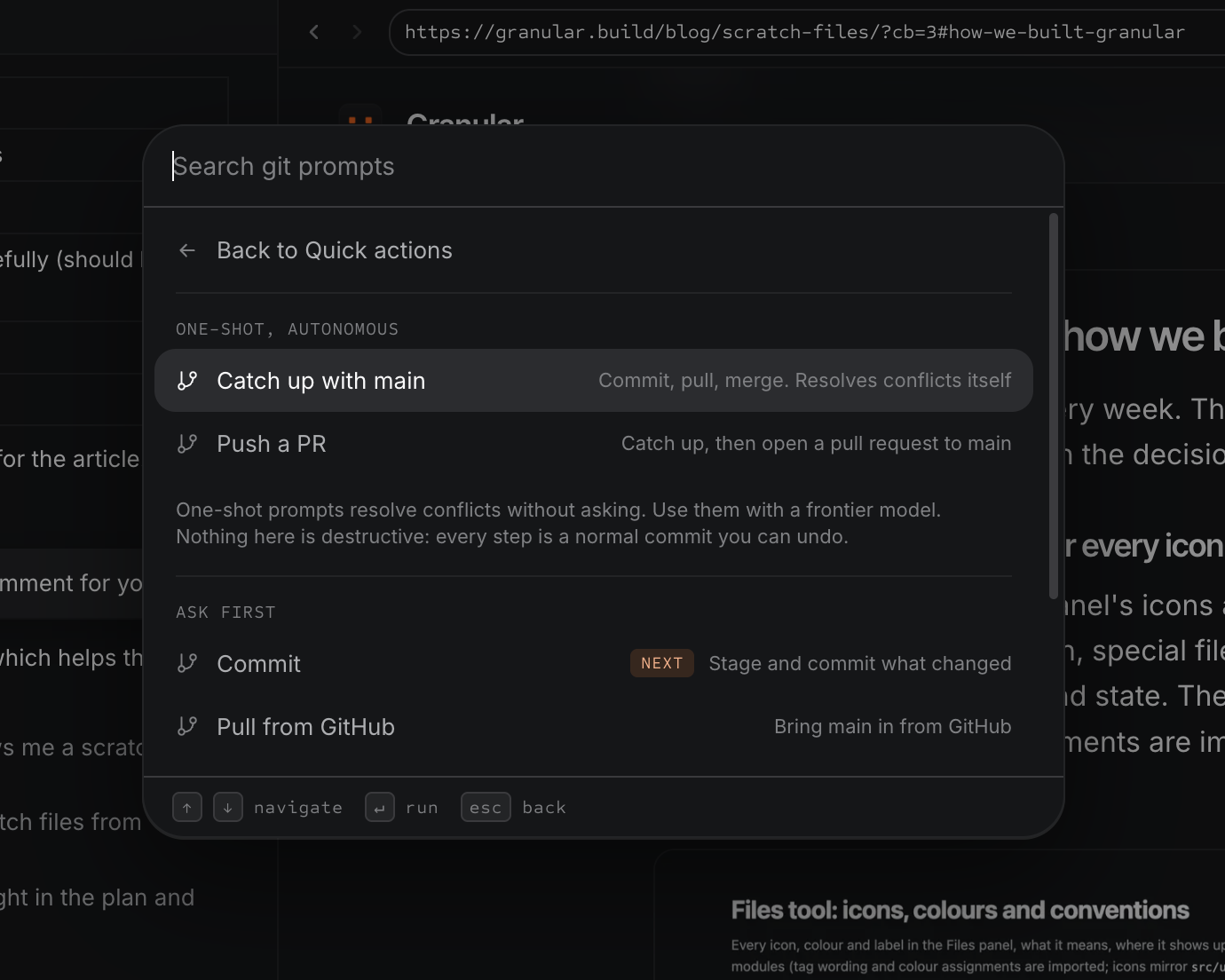
It let us decide the order of each list per situation, which single row earns the "Next" label, and one shared "stop line" that tells a hands-off prompt exactly which conflicts it must stop and ask about. Those decisions shipped. In Granular today the Git panel shows only the prompts that make sense for where you are, the command palette lists them all and marks the one safe next move "Next", and the hands-off one-shot prompts sit under their own heading so you only ever reach for them on purpose.
4. The thinking animation: eight sliders, one snapshot
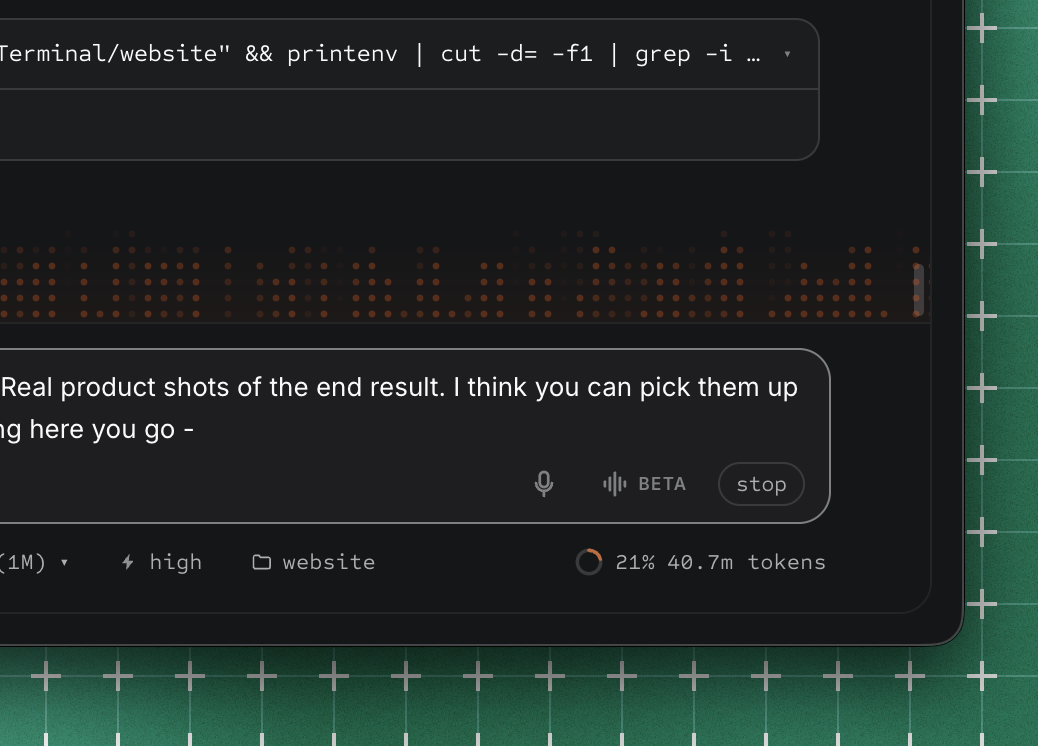
When an agent in Granular is working, a field of small orange dots rises from the bottom of the chat and fades as it climbs. Its look was settled in a scratch file: a mock chat pane with the animation running and eight live sliders along the top. Density, Height, Speed, Randomness, Fade start, Fade curve, Glow and Beat speed, each with its current number printed underneath so the exact values could be reported back.
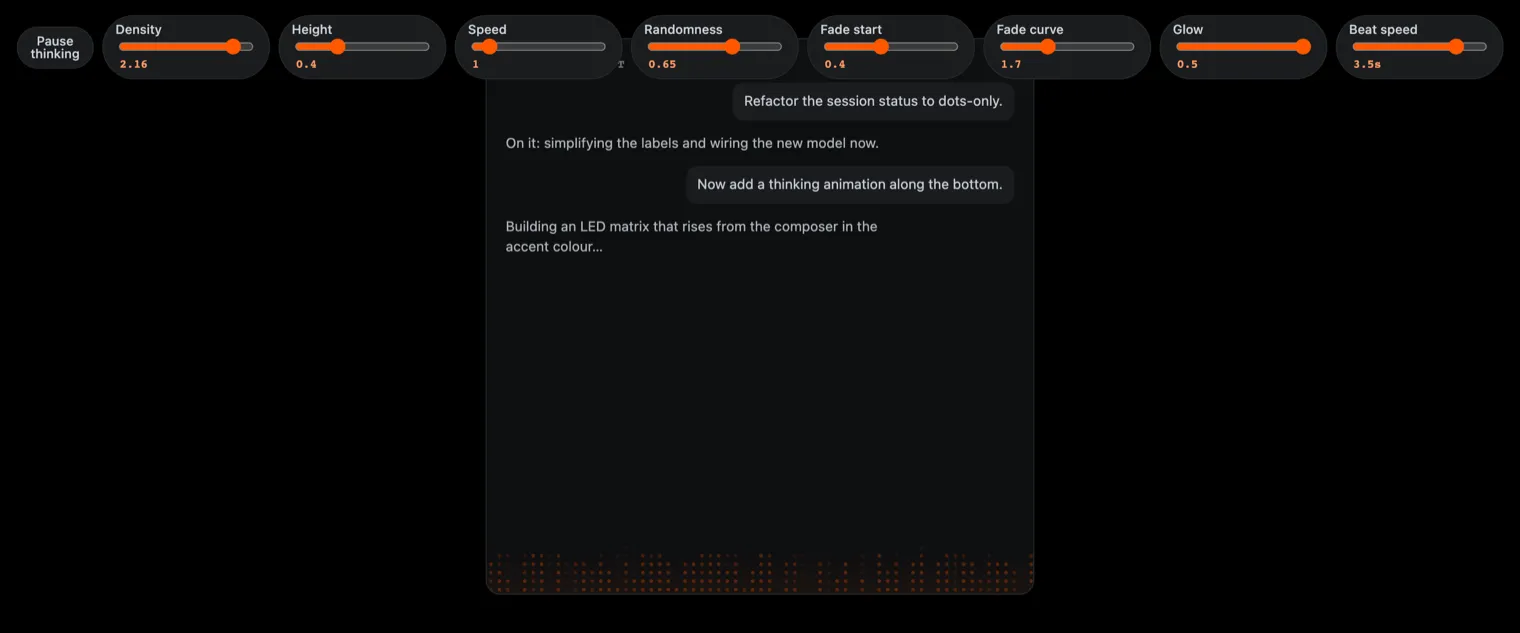
The shipped component says where its numbers came from, in its own comments: "Tuned values, snapshotted from the .dev/thinking-matrix demo (2026-06-19)." Below that comment sit the values (their code comments shortened here):
DENSITY    = 2.16   bars per column, per second
SPEED      = 1      how fast each bar climbs
RANDOMNESS = 0.65   0 is an even skyline, 1 is chaos
REACH      = 0.4    how high a bar can rise
FADE_START = 0.4    where in the climb a bar starts fading
FADE_CURVE = 1.7    stays bright, then drops fast near the top
Nobody arrives at a density of 2.16 by describing it. You get there by dragging a slider until it feels calm and alive at once, then pasting the number back.
5. The working dot: tuned until it disappeared into the row
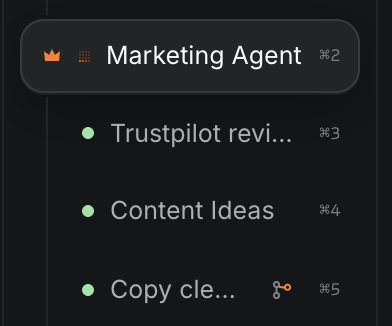
Next to each session in the sidebar, a tiny dot shows that an agent is working: lit pixels chasing each other through a small grid. Its scratch file shows the dot at true size inside a mock sidebar, a zoomed copy of the same animation, the dot at five sizes, and ten controls: render size, grid, comet length, speed, tail fade, pixel gap, track glow, minimum brightness, dot shape and path. A Snapshot values button prints them all as a list.
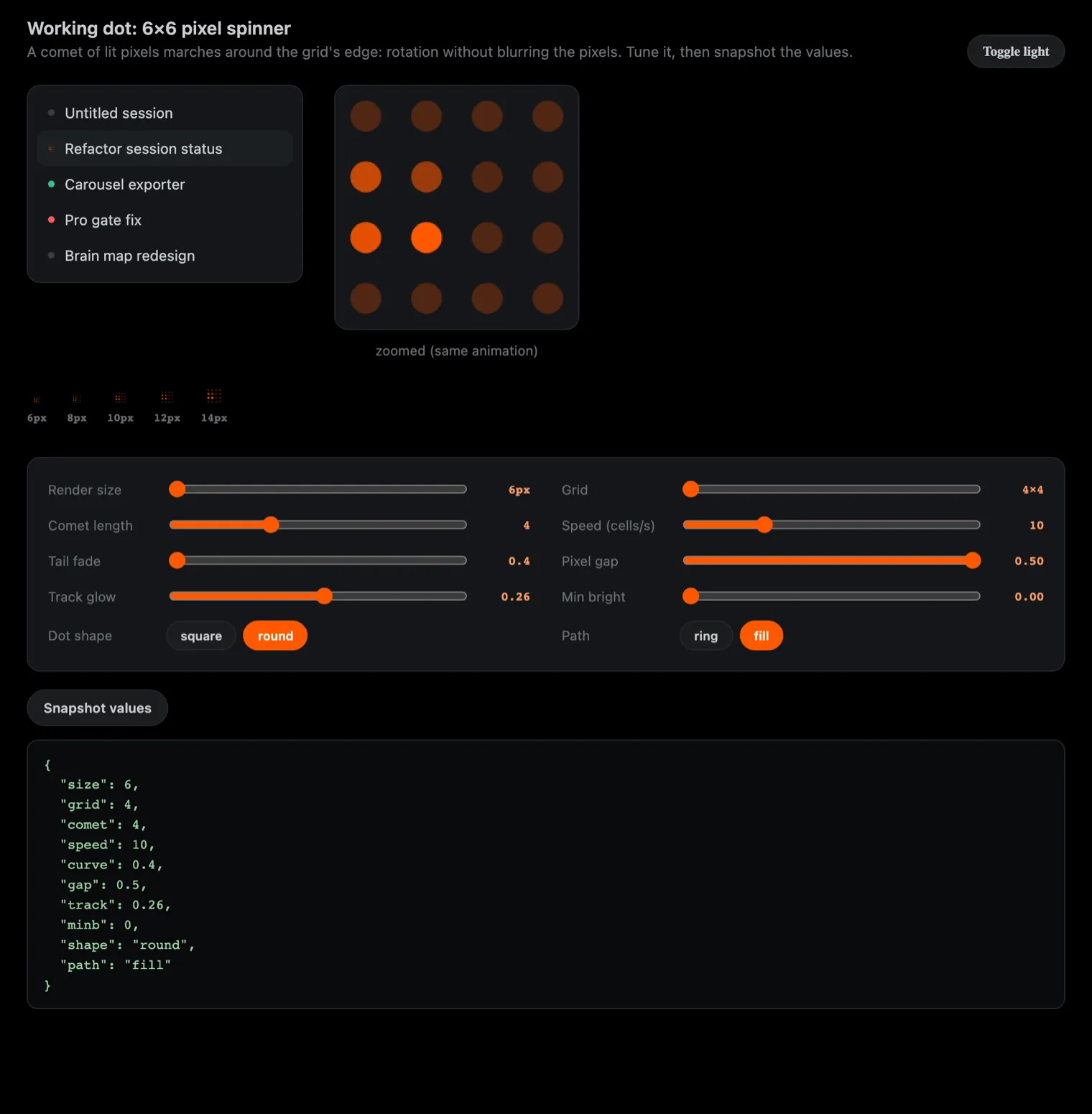
The tuning travelled a long way. The scratch file starts as a 6 by 6 grid of square pixels marching around its edge at 11 pixels wide. The shipped component, in its own words "ported from the tuned reference", is a different animal:
Size        6px     (was 11px in the demo)
Grid        4 x 4   (was 6 x 6)
Path        fill    (was ring)
Dot shape   round   (was square)
Comet       4
Speed       10      (was 14)
Tail fade   0.4     (was 1.3)
Pixel gap   0.5     (was 0.18)
Track glow  0.26    (was 0.12)
Min bright  0
Several of those ended up at the very end of their slider. Six pixels is the same size as the resting status dot it replaces, so when a session starts or stops working, nothing on the row moves. That is the kind of decision you only make when you can see the dot at true size, in place.
Tips that save you a round trip
- Insist on the real styles. If the agent invents new colours or fonts, the scratch file looks nice and the shipped screen looks different. Ask it to link the same stylesheet the app uses.
- Ask for the strange states by name. Agents happily build the happy path. Name the rest: nothing yet, one thing, too many things, a name that is far too long, it failed.
- Use realistic fake data. "Lorem ipsum" hides problems. Real-looking names, dates and numbers show you where the layout breaks.
- Make it at true size. Especially for small things like icons and indicators. Our working dot only made sense at six pixels, in a real-looking row.
- Keep scratch files out of the shipped app. A
scratch/folder is enough. They are references, not features. - One screen per file. If a file starts covering a whole product, split it. You want each one quick to open and quick to judge.
What a scratch file is not
It is not a design tool, and it does not make design skills unnecessary. You still decide what good looks like. What it changes is the medium you decide in: a real page with real styles that you can click, instead of a document you have to imagine.
It is also not the finished feature. Nothing in it talks to real data or saves anything. That is the point: it is cheap to change because nothing depends on it yet.
Try it on your next screen
Next time your agent offers a plan, ask for a scratch file instead. Copy prompt A above, click every state, and fix what you see. For anything that moves, use prompt B and tune it by hand.
If you want this built into how you work: Granular is the agentic terminal for visionary builders. Plug in your existing AI subscriptions and all your tools to build anything and run any task. Your agent can open a scratch file in the live preview next to the chat, so you click through it the moment it's written.
For more on working with agents, read Git Simplified for Vibe Coders, or download Granular.
Related reading
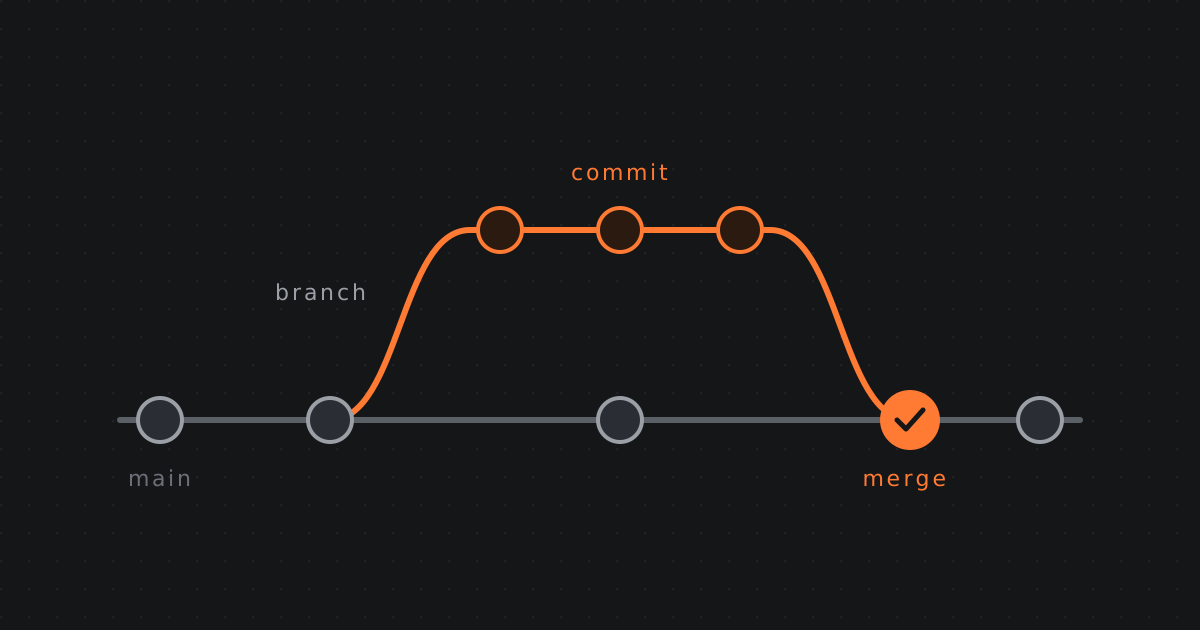 2026-09-14 · Guide, GitGit Simplified for Vibe CodersYou are building with agents. They keep saying commit, push, branch, merge. This is the whole thing in simple terms, in order, with nothing assumed.
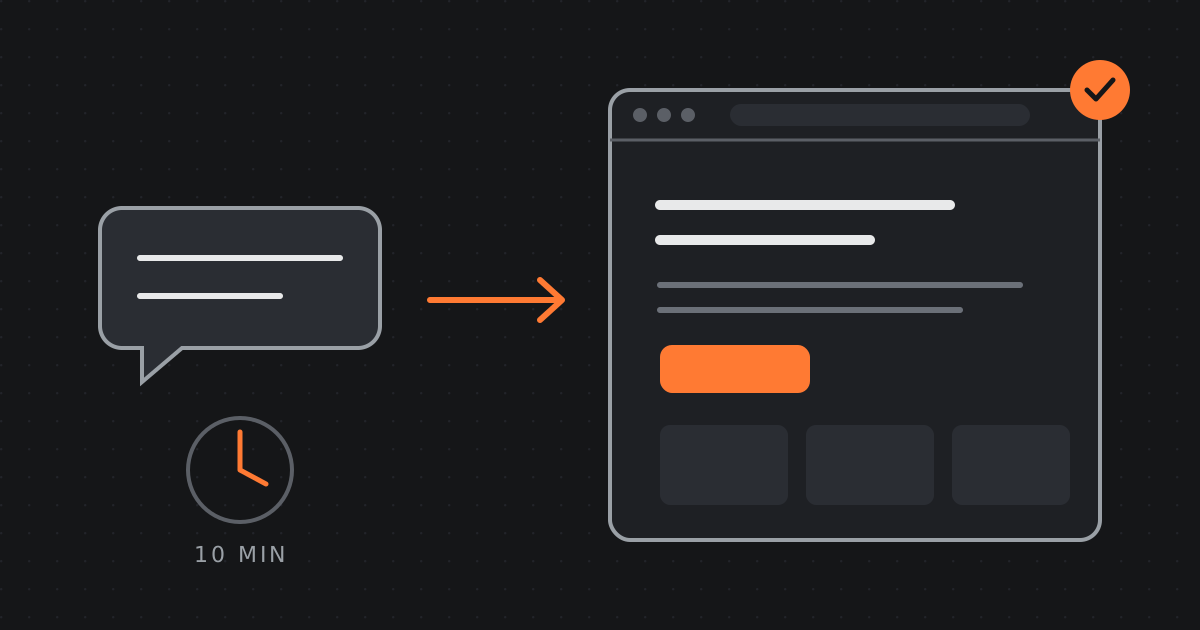 2026-06-26 · Guide, DesignHow to build a landing page with AI in 10 minutesA practical walkthrough: go from a single sentence to a published landing page using Granular, describe it, refine it live, and ship it to your domain.
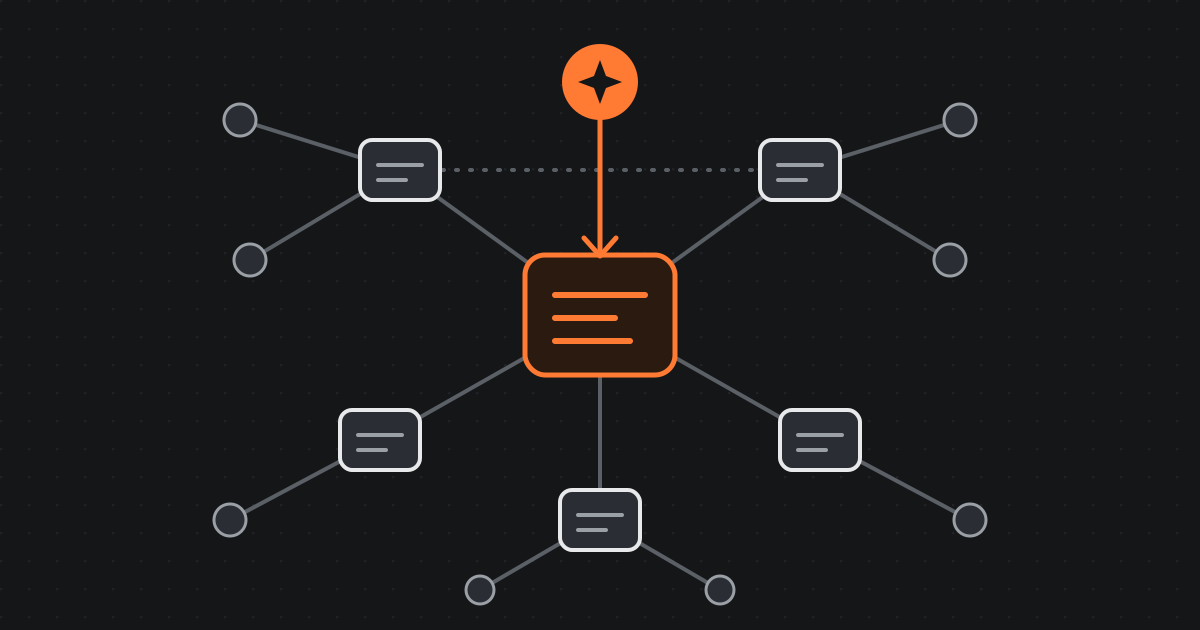 2026-10-06 · Research, BrainThe company brain: four months of running Granular on linked notesHow a designer runs a software company from one folder of markdown notes that AI agents read and write: how it evolved, why it works, and how it compares to ADRs and changelogs.