 Granular
Add files to a chat
How to give an AI agent the exact files and folders to work on: add them to your message from Files or Brain, drag them in, or attach a file from your computer.
Updated 2026-10-20
To point the agent at exact files or folders, add them to your message as chips. A chip names a file or folder in your project, so the agent knows exactly which one you mean, without you typing the path. Nothing is copied: the file stays where it is.
Before you start
Open a chat in a project. Chips work for files and folders inside that project.
Add from Files
- Open Files with its icon in the title bar.
- Hover a file or folder and click Add to chat (the speech bubble with a +). Or right-click it and choose Add to chat.
To add several at once, click the first, ⌘-click (Ctrl-click on Windows) the others, then click Add N to chat in the bar that appears. See Files.
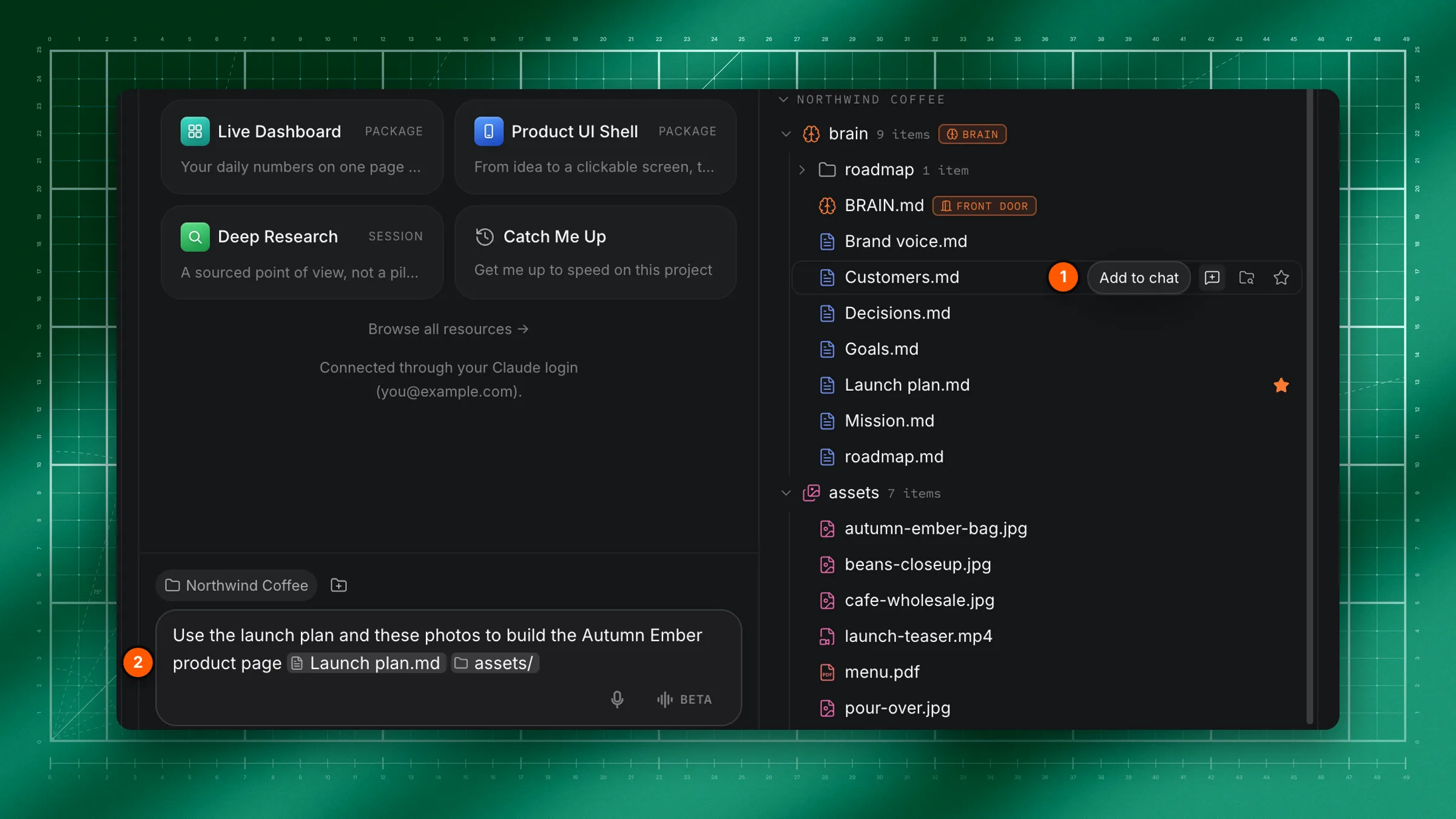
Add from Brain
- Open Brain and choose Notes.
- Hover a note and click Add to chat.
Drag them in
Drag any row from Files or the Notes list onto the chat. A small chip follows your pointer and drops into the message box.
Add from the message box
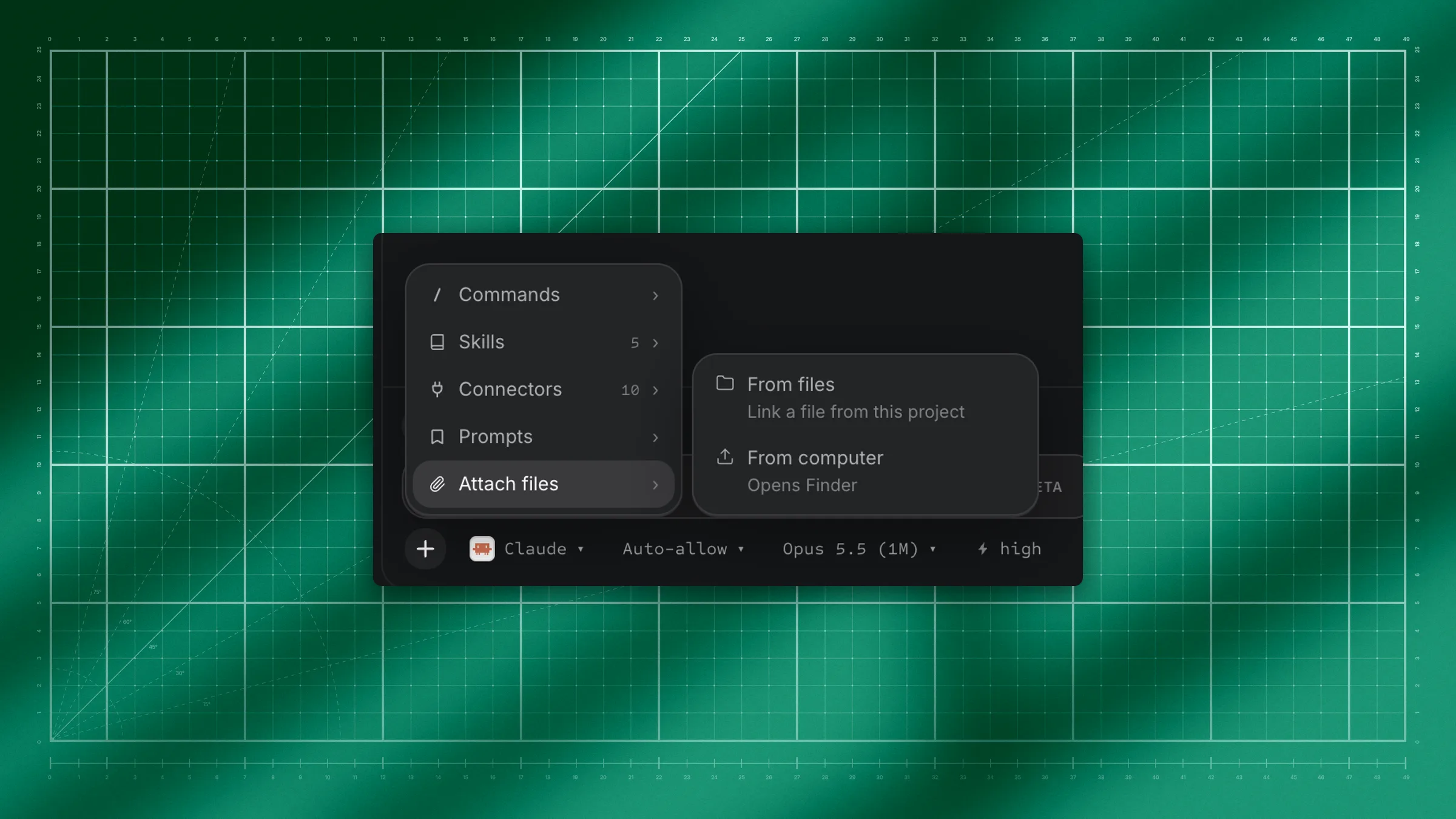
- Click + under the message box.
- Choose Attach files, then:
- From files: opens Files so you can add project files as chips.
- From computer: opens your computer's own file picker (Finder or File Explorer).
From files and From computer work differently:
| From files (chips) | From computer (attachments) | |
|---|---|---|
| Where the file can be | In this chat's project | Anywhere on your computer |
| What's sent | Where the file is, so the agent can open it | A copy of the file goes with your message |
| Folders | Yes | No |
| Limits | None beyond the project | Up to 4 pictures (about 5 MB each) and 10 other files per message |
What you'll see
The chips appear at the end of whatever you've typed so far, and the box flashes briefly. Your cursor stays where it was, so you can keep typing. Hover a chip to see the file's full path. Type your request and press Enter as usual.
When you send, the agent is told which files and folders you pointed at and where they are:
- A file: the agent opens it as it needs to.
- A folder: the agent also gets a list of what's in it.
- Models that can't open files themselves get the text of small files included with your message.
Files that hold secrets, such as .env files, are never read this way. Keep secrets in the Vault.
Change or undo it
A chip acts like one character: put the cursor just after it and press Backspace (or just before it and press Delete) to remove the whole chip before you send.
Limits
- Only files in this chat's project. A file outside the project can't be a chip. To share it, use From computer, which attaches a copy.
- Extra folders count as outside. Files in an extra folder added to the chat can't be added as chips yet, even though Files shows the button. Ask the agent about them by name instead, or attach them with From computer.
Troubleshooting
If you see "That's outside this chat's project, so it can't be added."
The file or folder isn't inside the project. Attach it with + → Attach files → From computer, or move it into the project.
If some items were skipped
Granular says how many were outside the project. The rest were added.
If a picture won't attach
It may be over about 5 MB. Send a smaller copy or a screenshot.