 Granular
Terminal
Watch every command your AI agent runs in Granular's built-in terminal, type your own, or open more terminal tabs, each on the main project or a branch copy.
Updated 2026-10-20
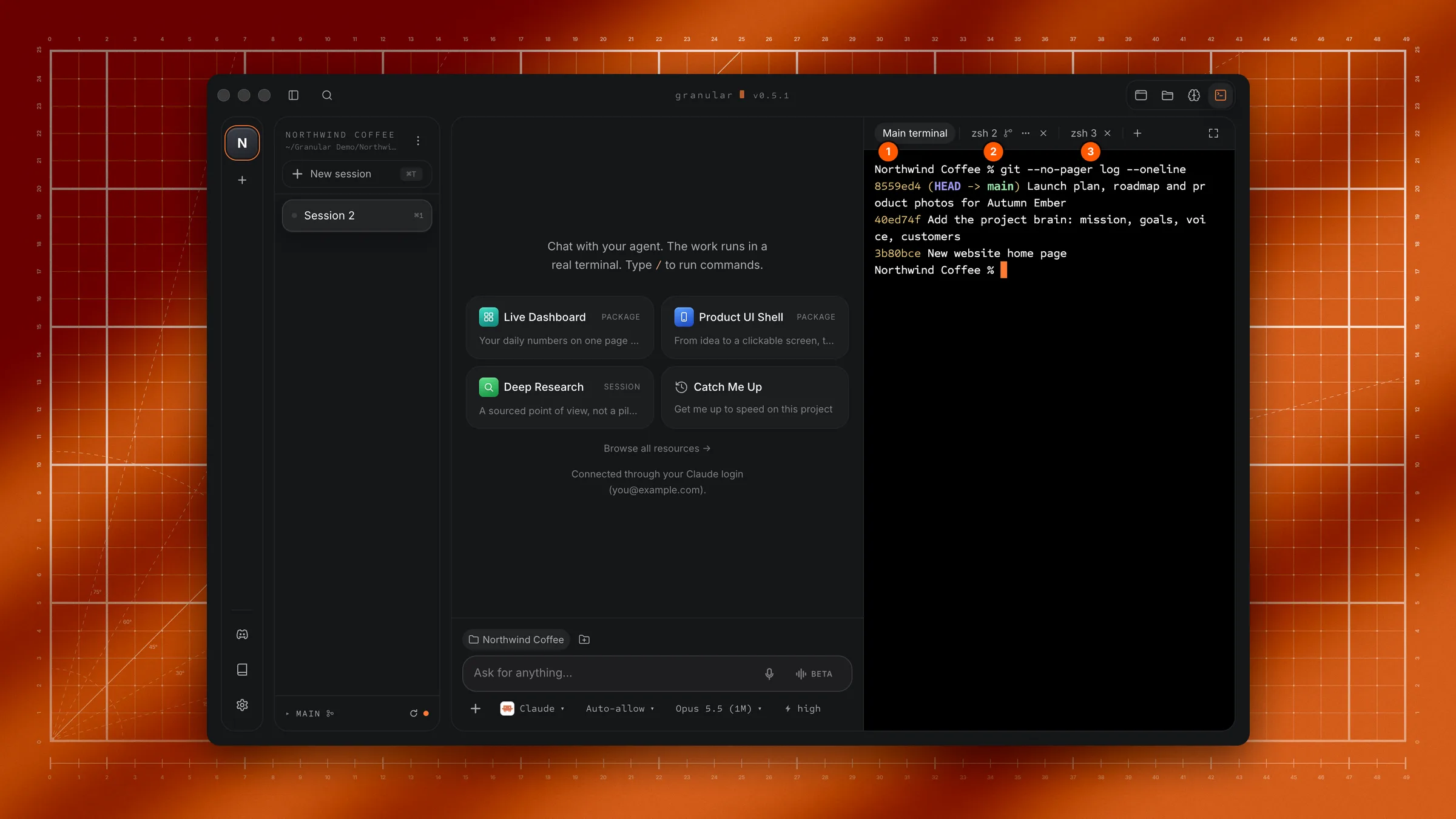
Every chat has a Terminal tool: a real command window where the agent runs its commands, so you can watch exactly what it does. Open it with the Terminal icon at the right of the title bar, or press ⌘J (Ctrl+J on Windows). You can type your own commands too, and open more terminals in tabs.
A terminal is the text-based way to run programs on your computer. You never have to use it: the agent runs everything for you from the chat.
Before you start
Open a chat. The terminal works in the chat's folder.
Open and close it
- Open: click the Terminal icon in the title bar, or press ⌘J (Ctrl+J).
- Close: click the icon again, or press ⌘J again. The terminal keeps running while it's hidden.
- While it's hidden, the Terminal icon glows when the agent is running a command, so you know something is happening.
Main terminal
The first tab, Main terminal, is the agent's. Each command the agent runs appears there with its output as it runs. You can type in it as well.
Main terminal can't be closed on its own. It closes when you close the chat.
Open more terminals
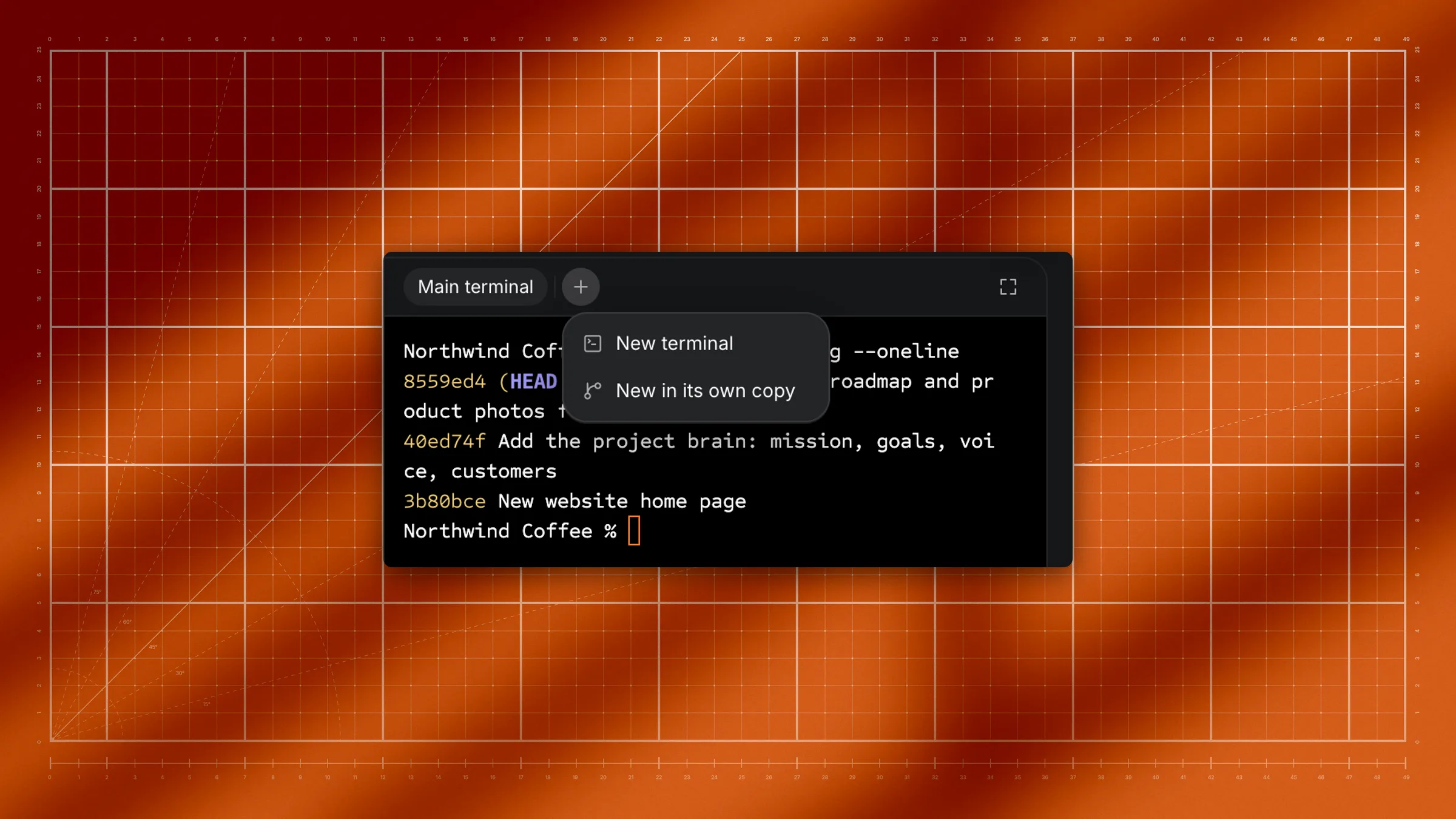
Click + at the end of the tab row and choose:
- New terminal: a second terminal in the chat's folder. It's named after your terminal program with a number, such as zsh 2.
- New in its own copy: a terminal that works on its own copy of the project, on a separate branch, so changes made there don't touch your main files until you merge them. The tab shows "Setting up its own copy…" for a few seconds, then the terminal starts.
The agent can open tabs too. Ask it to "run the server in its own terminal tab". The new tab is selected in the Terminal tool, but the tool doesn't pop open by itself.
Type exit in an extra tab to close it.
Terminals with their own copy
A tab with its own copy shows a small branch icon. Hover it to see the branch name. Click the tab's ⋯ (or right-click it) for:
- Merge its copy: bring the copy's changes into your project.
- Open its folder in Files: browse the copy's files.
To learn more about copies and branches, see Branch sessions.
Rename a tab
Extra tabs can have names you choose (Main terminal keeps its name):
- Double-click the tab's name, type a new one and press Enter, or
- Click the tab's ⋯ (or right-click it) and choose Rename….
Names can be 1 to 40 characters. Two tabs can't share a name: if you try, Granular says "Another tab is called that".
See all terminals at once
Click the grid button in the Terminal tool's toolbar (Show all terminals in a grid). Every terminal tab shows side by side, each with its own header. Click the button again (Back to tabs) to go back. Granular remembers which view you used in each chat.
In the grid you can rename an extra terminal by double-clicking the name in its header.
Start a coding agent in a terminal
Click Start agent (the sparkle button, tooltip Start an agent) in the Terminal tool's toolbar. A menu lists the coding agents you can run in a terminal, such as Claude Code, Codex, Gemini CLI, OpenCode, Pi, Cursor and Grok, each marked Ready, Not installed or Needs sign-in. Pick a Ready one and Granular starts it in the terminal you're looking at.
Agents in a terminal
If a coding agent such as Claude, Codex or Gemini runs in a terminal tab, the tab shows its mark with a dot: moving while it works, grey when it's idle, amber when it's waiting for you.
Close a terminal
Click the × on an extra tab.
- If something is still running in it, Granular asks Close this terminal? and names what's running. Stop and close stops it; Cancel leaves it alone.
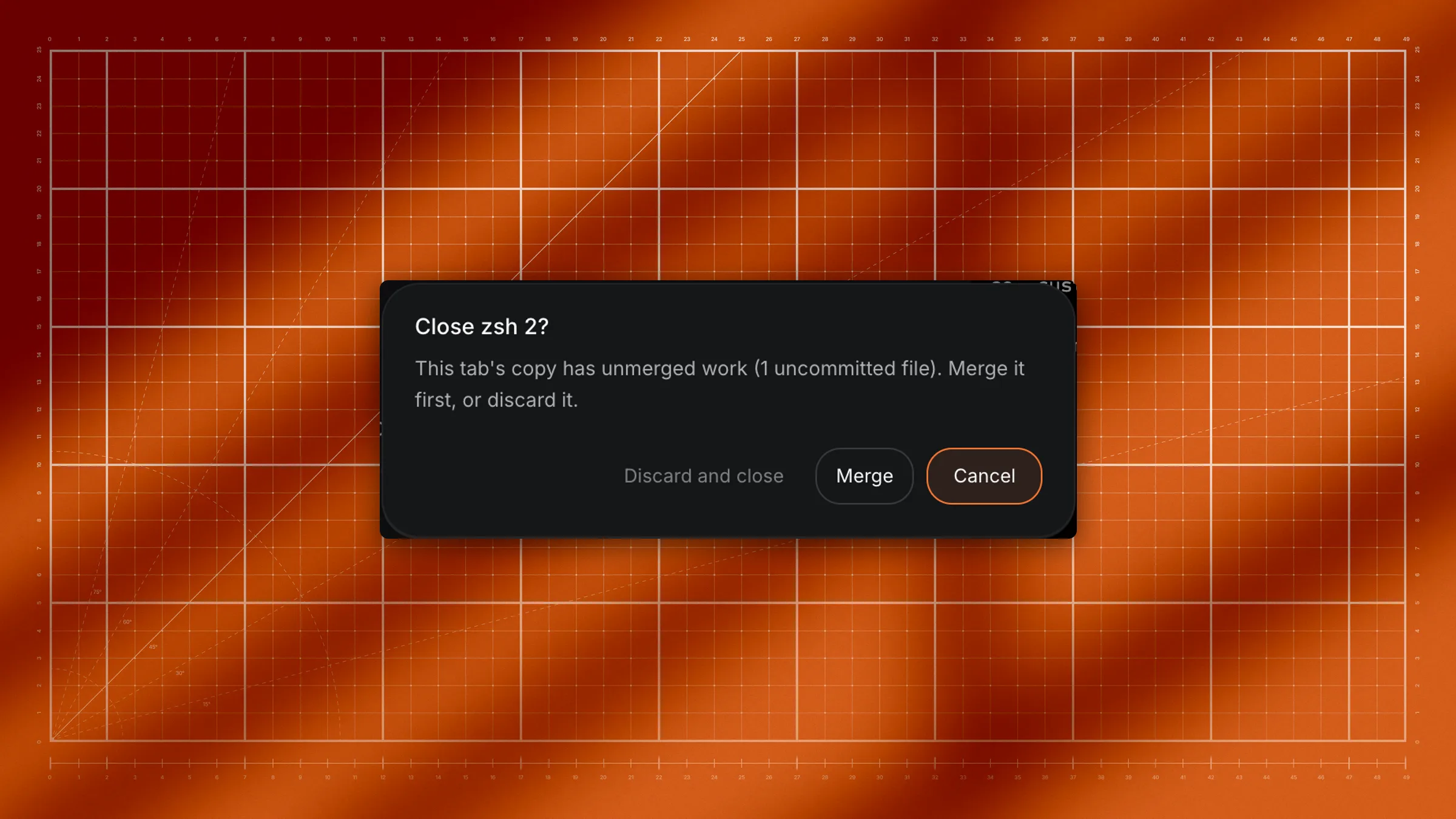
- If its own copy has changes not yet merged, Granular asks you to Merge, Discard and close, or Cancel.
Full screen
Click the full screen button at the right of the tab row. Click it again to go back. (Esc goes to the program in the terminal, not to Granular.)
When the terminal rests
If a chat's Main terminal has had nothing to do for 10 minutes, Granular closes it to save your computer's resources. You'll see: "closed after 10 min idle · reopens on next command (folder and secrets restored)". The next command starts it again in the same folder.
It never closes while:
- the agent is working, or a command is running,
- a program such as a preview server is running in it,
- a coding agent is running in it, or a command is waiting for your answer,
- the Terminal tool is open on screen.
Extra tabs never close by themselves.
Limits
- Extra tabs don't come back after a restart. When you reopen Granular, each chat starts with a fresh Main terminal. Anything that was running, such as a preview server, needs starting again. Ask the agent.
- One terminal on screen at a time in tabs view. Switch tabs to see another, or use the grid to see them all.
Troubleshooting
If you can't find the terminal
Click the Terminal icon at the right of the title bar, or press ⌘J (Ctrl+J).
If the terminal says "session ended"
The terminal stopped. Click start a new session in the bar at its bottom.
If it says "couldn't start a shell session"
Click clean up shells & retry.
If a tab says "Couldn't give this terminal its own copy"
The copy couldn't be made. The message after it says why. Click Close tab, then use New terminal instead, or ask the agent to fix what the message describes.
If a terminal tab vanished
Its program ended (for example after exit). Granular says "The … terminal exited." Open a new one with +.
If my server stopped after a restart
Terminals start fresh when you reopen Granular. Ask the agent to start it again.