 Granular
The Preview canvas
See every page, image, video and PDF you're working on side by side on one zoomable board in Preview. Check pages at desktop, tablet and phone size, save pictures, and point your agent at any frame.
Updated 2026-10-20
The canvas is a second way to look at Preview. Instead of one tab at a time, every Preview tab becomes a frame on a big board you can pan and zoom, so you can see a landing page, its phone version, the logo and the brief side by side.
The canvas and the tabs are the same set: open something on the canvas and it's also a tab, close a frame and its tab goes too. Empty tabs stay in the tab strip only.
Open the canvas
- Open Preview from the title bar.
- Click the frame icon at the right of the tab strip (its tooltip says Show all tabs on a canvas).
To go back, click the same frame button, now pressed, at the top right of the board (Back to tabs). Or open one frame as a tab: click Open as tab (the arrows icon above the frame), or select the frame and press Enter.
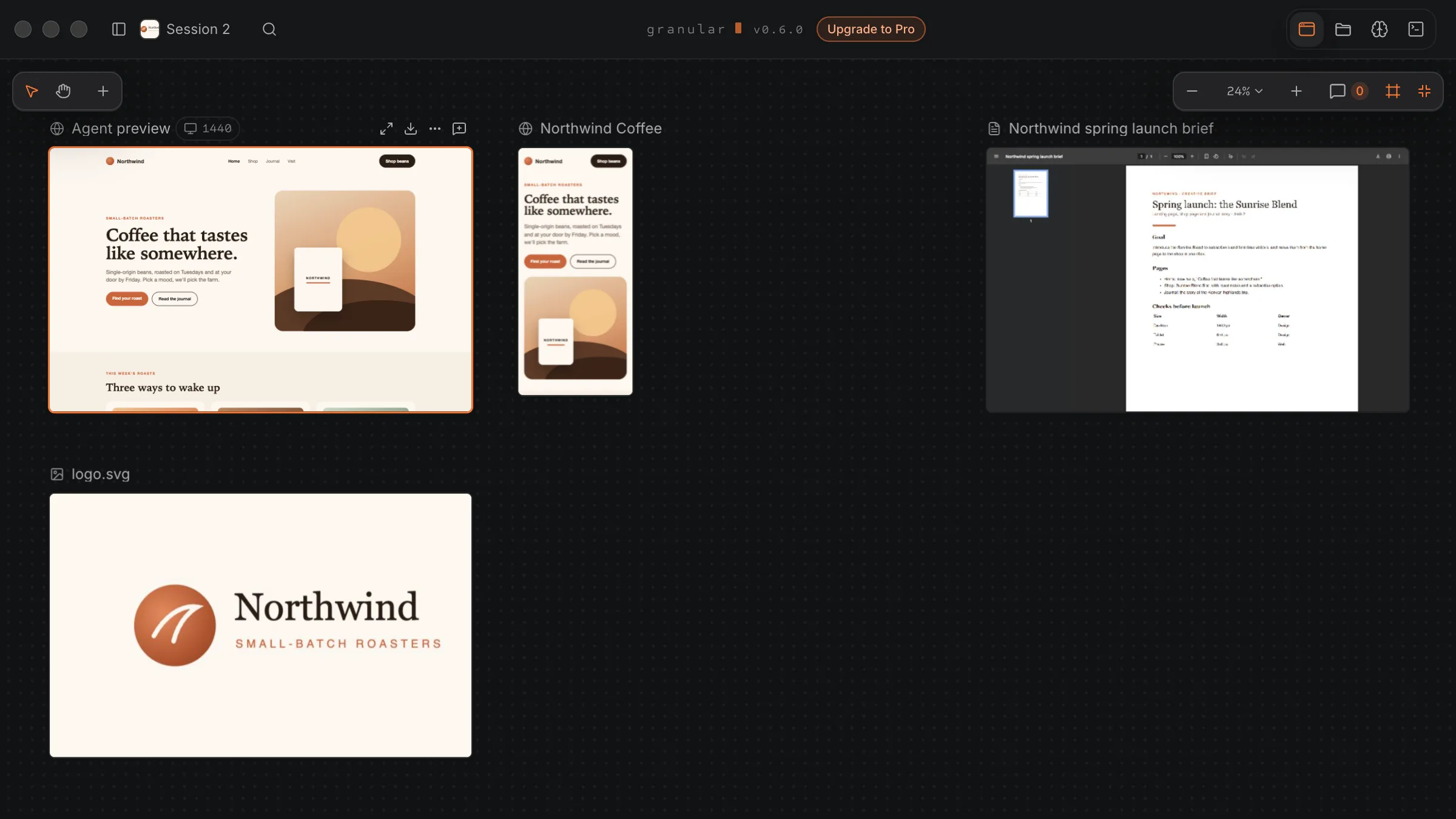
Getting around
- Pan: drag empty space, or hold Space and drag. The Hand tool (H) makes every drag a pan. Select (V) goes back to normal.
- Zoom: pinch, hold Cmd (Ctrl on Windows) and scroll, or press Cmd+= and Cmd+- (Ctrl on Windows). You can zoom from 5% to 200%.
- The zoom menu: click the zoom percentage at the top right for Fit all (Cmd+0, or Ctrl+0), 50%, 100% (Cmd+1, or Ctrl+1), 200% and Tidy into a grid, which lines every frame up neatly.
- Move a frame: drag its title. Resize: drag its bottom-right corner. Or select it and use the arrow keys; hold Shift to move it further.
- Tab and Shift+Tab move from frame to frame. Enter opens the selected frame as a tab.
On a narrow window the zoom controls get smaller: the − and + move into the zoom menu, and the controls can move to a second row.
Live frames and pictures
Frames that are on screen and big enough to read run live, so scripts run and animations play at full speed. Up to 6 frames run live at once. The rest show a still picture to save memory, and wake up when you look at them again.
To keep a frame still, open its ⋯ menu and click Pause. It stays a picture until you click Play, or until the agent shows something new in that tab.
Desktop, tablet and phone sizes
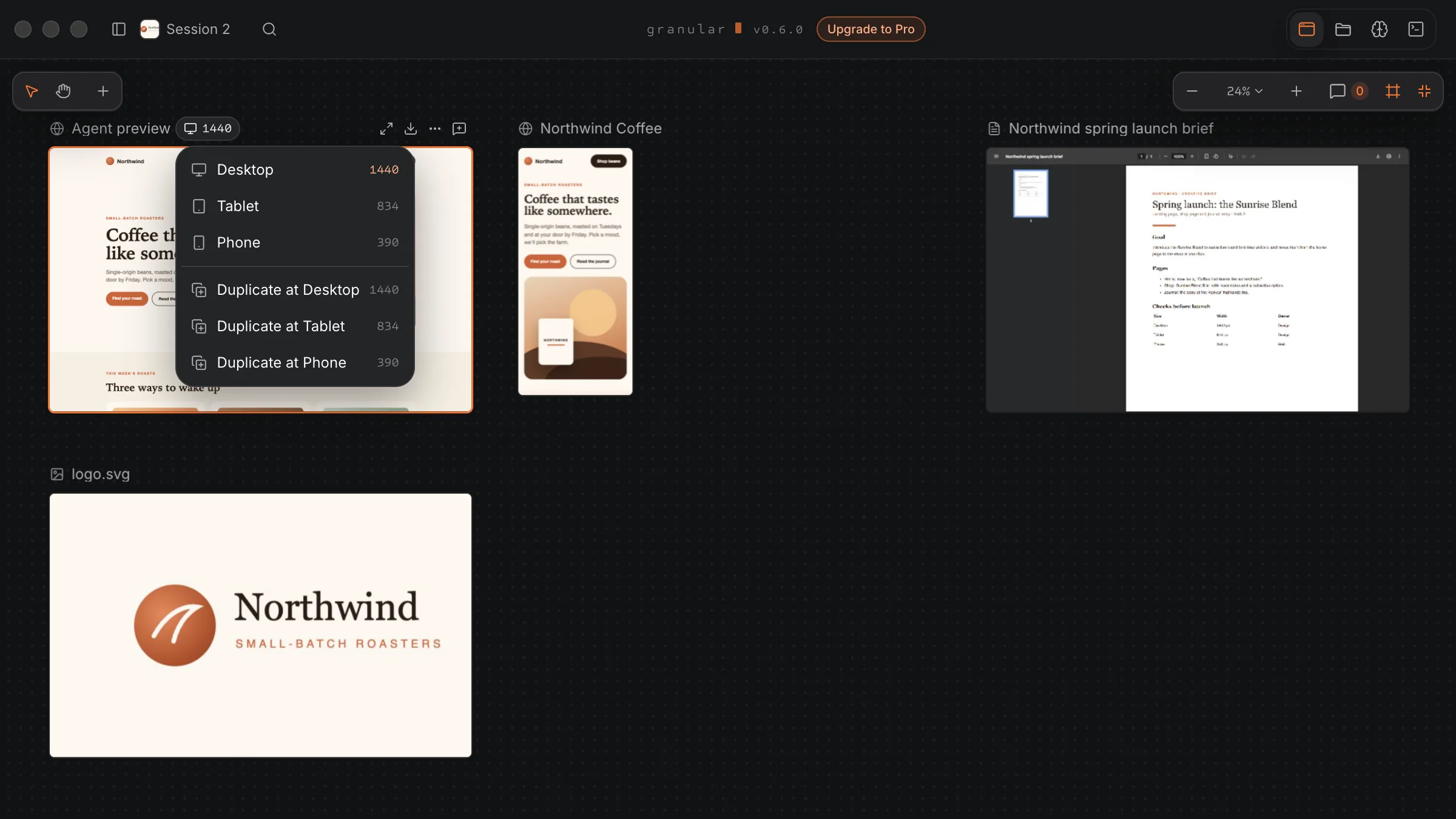
Each frame has a size chip showing its width, for example Desktop, 1440 px. Click it to choose:
- Desktop (1440 px)
- Tablet (834 px)
- Phone (390 px)
The size applies to that frame only. To see the same page at two sizes side by side, use Duplicate at Desktop, Duplicate at Tablet or Duplicate at Phone in the same menu. A new tab of the same page opens right after the original, at that size.
Frame buttons and the ⋯ menu
Point at a frame (or select it) and a row of buttons appears above it:
- Open as tab (arrows icon): leave the canvas and show this frame as a normal tab.
- Save a picture (PNG) (download icon): saves a full-resolution picture of the frame. A live frame is captured as it looks now; a paused one saves its last picture.
- More (⋯): the frame's menu.
- Ask about this (speech bubble with a +): see below.
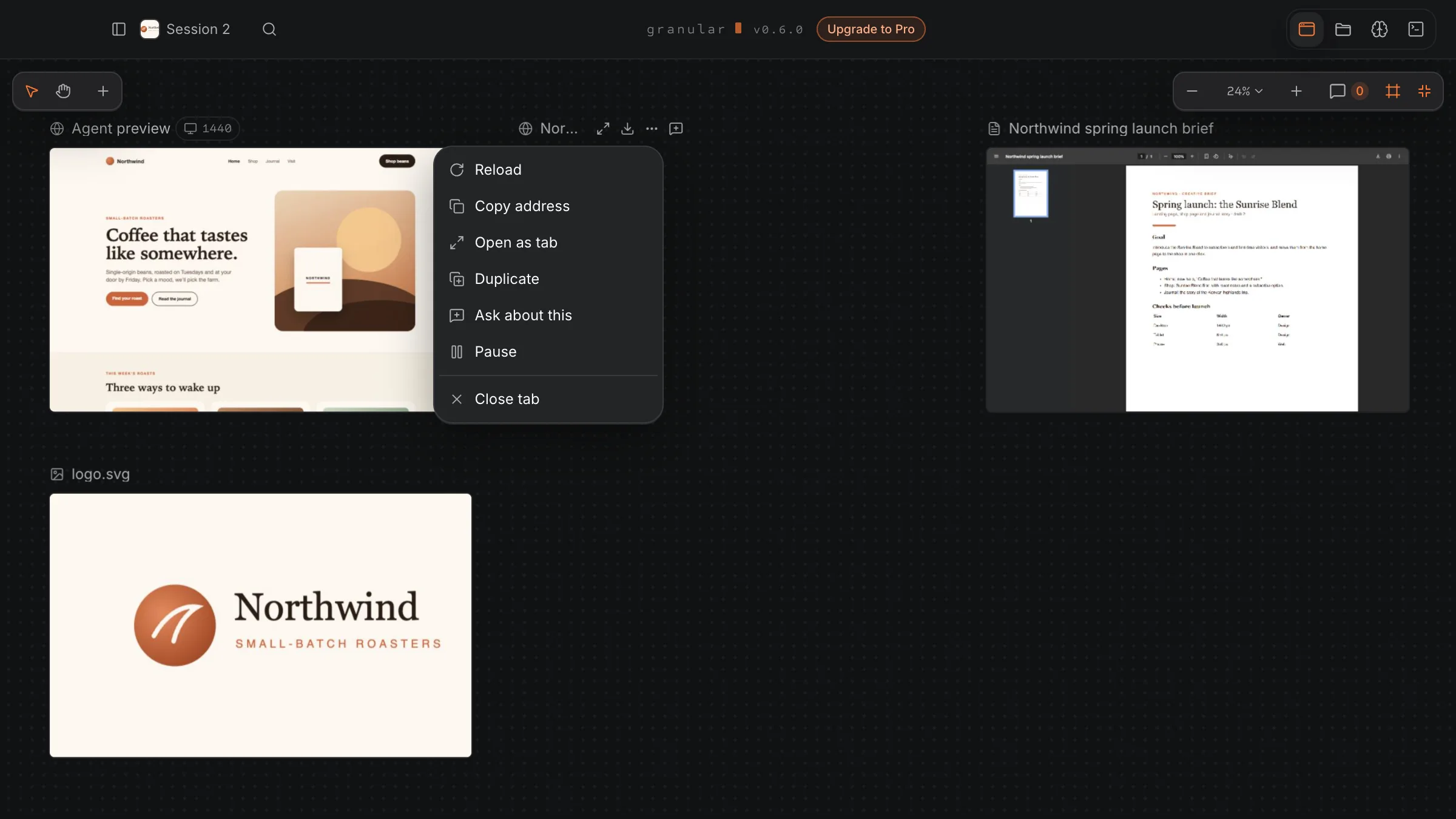
The ⋯ menu has, in order: Reload, Copy address, Open as tab, Duplicate, Ask about this, Pause (or Play), and Close tab. Duplicate opens a second tab of the same page right after the original. Close tab closes the frame and its tab.
In tabs view, a tab's ⋯ menu (or right-click) has the same items, apart from Open as tab and Pause.
Ask about this
Ask about this points your agent at a frame. It adds a chip for that page to the chat's message box, so you can type your question and send it. Nothing is sent until you do.
- A file from your project gets the normal file chip; a web page or a local server gets an address chip.
- No screenshot is attached. The agent gets the file or address and can take its own screenshot if it needs one.
- Asking about the same frame twice just takes you to the message box.
It works from a frame's button row, from its ⋯ menu, and from a tab's menu in tabs view. In full screen it opens the chat panel on the left; press Esc to tuck it away.
Add your designs
There are three ways to put a file on the canvas:
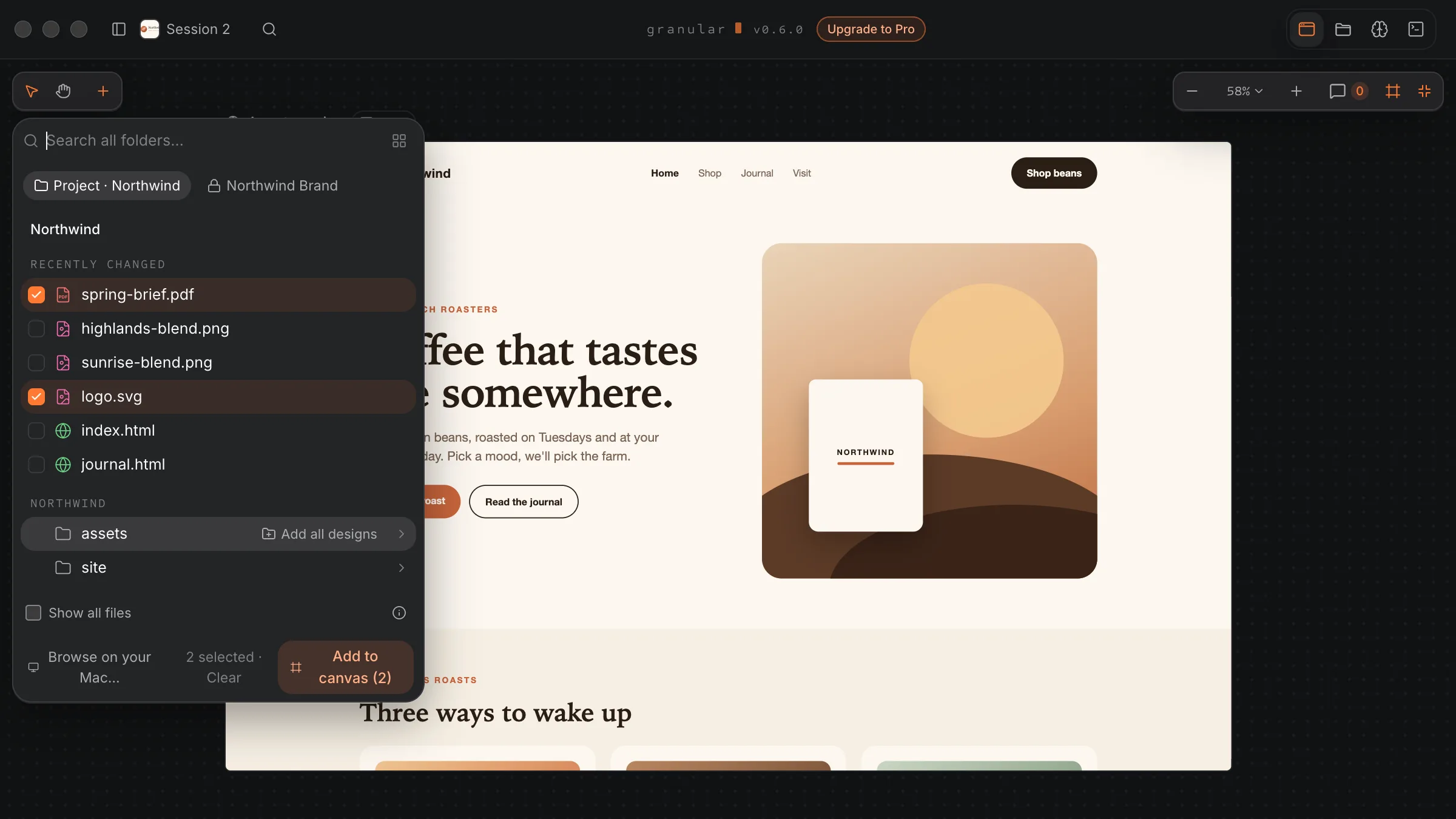
- Add file…: click the + at the top left of the board. The picker lets you browse every folder this chat can see (your project and any extra folders, read-only ones too), switched with the chips at the top. You can search with "Search all folders…", pick from Recently changed or Starred, or use Add all designs on a folder. Tick the files you want and add them. To pick a file from somewhere else, click Browse on your Mac… (Browse on your PC… on Windows).
- Drag and drop: drag files from Files onto the board. They land where you drop them.
- From Files: right-click a file and choose Open on canvas. Select several first (Cmd-click or Shift-click, Ctrl-click on Windows) for Open N on canvas.
For a whole folder, right-click it in Files and choose Open all designs in this folder. It adds up to 12 designs at a time and tells you if any were left out.
The picker only lets you tick files the canvas can show. Tick Show all files to see the rest too. A file that's already open isn't added twice: its frame is selected instead.
If the board is empty, it says "Put your designs on the canvas" with these same three ways.
What can go on the canvas
| Type | Files | How it shows |
|---|---|---|
| Web pages | .html, .htm | Live: scripts run and animations play |
| Vector images | .svg | Sharp at any zoom |
| Images | .png, .jpg, .jpeg, .gif, .webp, .avif | GIFs animate |
| Video | .mp4, .webm | Plays in the frame |
| Documents | In the built-in PDF viewer | |
| Addresses | local servers (like localhost:3000) and web pages | Live, like a browser tab |
Not on the canvas (yet):
- Notes, text and data (Markdown, .txt, .csv, .json) and code open in Files, where you can read them.
- .mov videos don't play in a frame. Save or export them as MP4 and they will. The same goes for .m4v and .avi; for .mkv, use MP4 or WebM.
If you add something the canvas can't show, a short note at the bottom of the board tells you, for example "Can't show .mov on the canvas yet - save it as MP4 to show it here".
Comments on the canvas
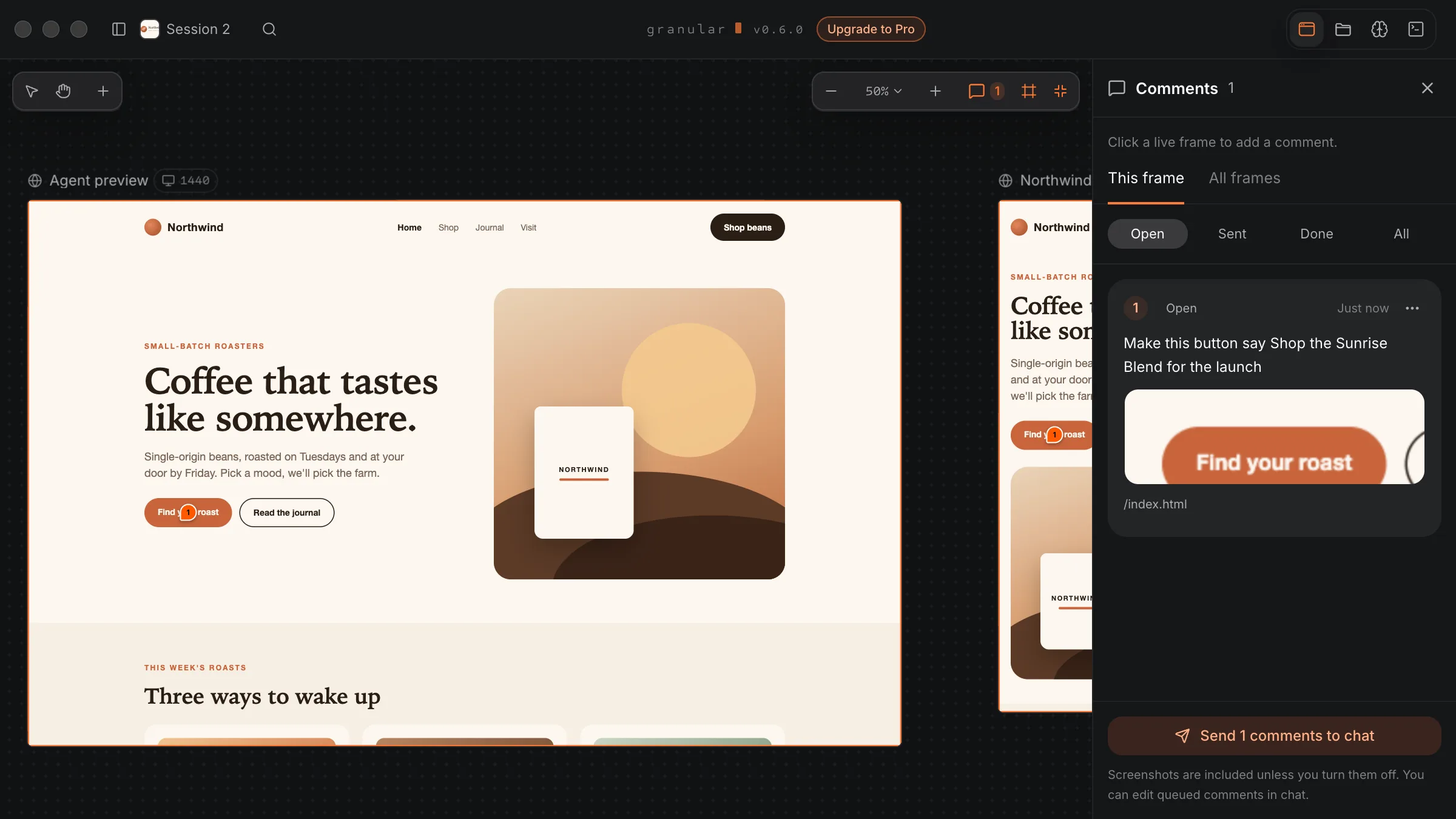
The Comments button sits beside the canvas button. Open it and the panel says "Click a live frame to add a comment.". Its tabs read This frame and All frames. Everything else works as it does in tabs view. See Preview comments.
Limits
- Up to 6 frames run live at once. Others show a still picture until you look at them.
- Zoom goes from 5% to 200%.
- No drawing tools yet. You can't add text, sticky notes or shapes to the board.
- Files only from this computer. Uploading straight from elsewhere isn't possible yet.
Troubleshooting
If a frame shows a still picture instead of the live page
It's off screen, too small to read, or one of more than 6 frames on screen. Zoom in on it or move it into view. If its ⋯ menu says Play, it's paused: click Play.
If a frame is blank
Check the file type is in the table above. For a page, click Reload in its ⋯ menu.
If a file isn't added when you drop it
Read the note at the bottom of the board. It says why, for example a .mov video.
If I can't find Back to tabs
It's the pressed frame button at the top right of the board, after the zoom controls.