 Granular
Files
Browse every file your AI agent creates, read and edit Markdown notes as they update live, and add files to the chat, all in Granular's built-in Files tool.
Updated 2026-10-20
Files shows every file in your project, as a list or a grid. Click a note or a code file to read it in its own tab right there; web pages, images, videos and PDFs open in the Preview. You can search, filter, sort, star files, edit notes, and add any file to the chat.
Before you start
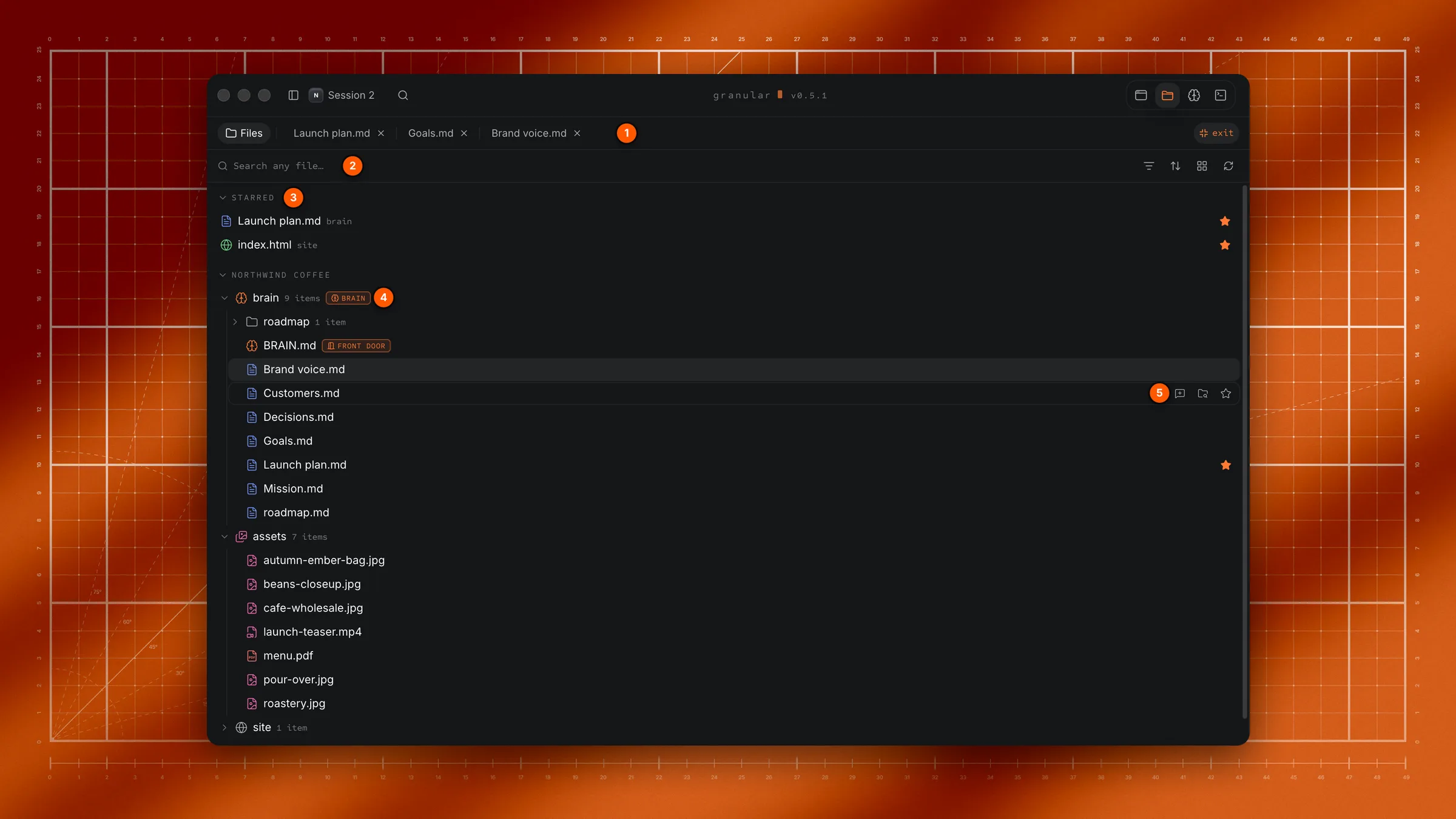
Open a chat in a project. Then click the Files icon (a folder) at the right of the title bar.
Find a file
The row under the tabs has:
- Search any file…: type part of a name. Granular looks in every folder, not just the open ones. Press Esc to clear it.
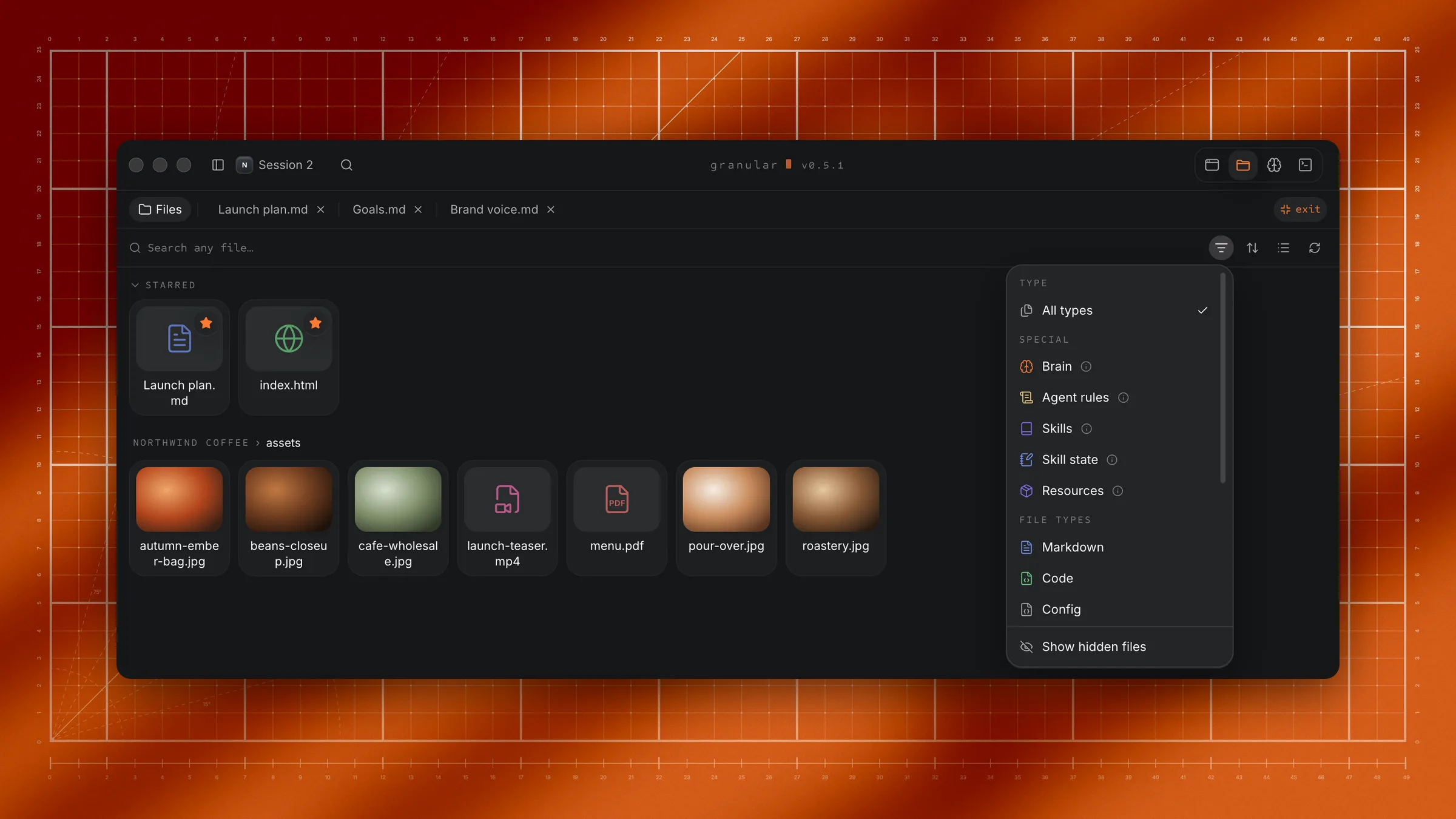
- Filter (the funnel): pick what to show.
- Special: Brain, Agent rules, Skills, Skill state and Resources (the folders and files Granular itself uses).
- File types: Markdown, Code, Config, Images, Video, Audio, Fonts, HTML, PDF and Other.
- Show hidden files: files and folders that are normally hidden, and ones your project tells tools to ignore.
- Sort: Granular first (your brain, rules and skills on top), Name A–Z, Name Z–A or Last changed (newest first).
- Grid view / List view: switch between a list of rows and a grid of tiles. In the grid, images show a small picture.
- Refresh: read the folder again.
Active filters show as chips under the search row. Click a chip's × to remove it, or Clear to remove them all.
The sections
The list is split into sections. Click a section's heading to fold or unfold it.
- Starred: files and folders you starred, at the top. Only shows when you've starred something.
- Extra folders: any other folders this chat can use, each marked Pinned to this project or Only in this chat.
- Your project: the project's folder, last.
In the grid, double-click a folder to go into it. Click a name in the path at the top to go back up.
Open a file
Click it.
| File | Where it opens |
|---|---|
| Notes (Markdown), plain text, code, config and logs | In a new tab here in Files |
| Web pages, images, PDFs, video and audio | In the Preview |
| Anything else | In its usual app on your computer ("Opened … in its usual app.") |
Open in the background: hold ⌥ (Alt on Windows) when you click, or click with the middle mouse button. The file gets a tab, but you stay where you are.
Each file opens once. Clicking a file that's already open goes to its tab.
Read a file
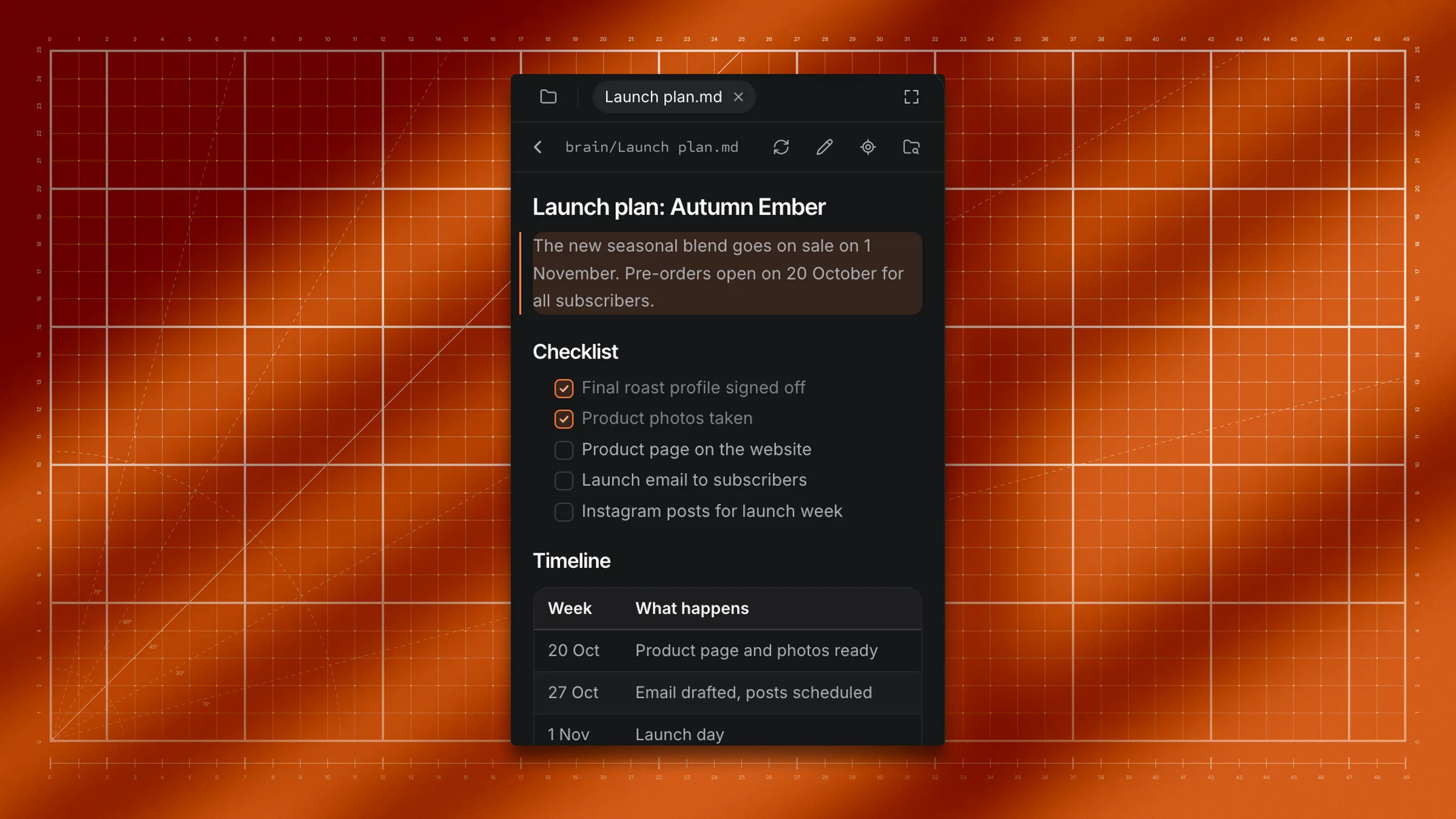
A file tab has a row of buttons at the top:
- Back: the round arrow at the left. Click a
[[link]]in a note and the same tab moves to that note; Back steps back through them. At the start, it returns to where you came from: the file list, or Brain if you opened the note there. - Refresh: read the file again.
- Edit (the pencil): edit a note or text file. See below.
- Show in Files (the crosshair): go back to the list with this file's folder open and the file selected.
- Reveal in Finder (File Explorer on Windows): show the file in its folder on your computer.
Code and config files show with line numbers, ready to read but not to edit. Very large files show the first part, with a button to load more.
Notes update as the agent works
When the agent (or anything else) changes a file you have open, the new text appears by itself. Your place on the page stays put, and the part that changed gets a short orange mark so you can see what's new.
If you're selecting text or pointing at the page, Granular waits so nothing jumps under you. The refresh button gets a dot; click it, or move away, and the update lands.
Edit a note
- Open the note.
- Click the pencil (Edit).
- Type your changes. They save shortly after you stop typing.
- Click done.
The editor also has Version history and suggest (hand your edits to the agent). See Digital brain.
You can tick a note's checkboxes (- [ ] lines) right in the reader, without opening the editor. The tick is saved to the file.
Star a file
Hover a file or folder and click its star, or right-click it and choose Star. Starred items show in Starred at the top. Click a starred folder to jump to it in the list. To remove a star, click it again or choose Unstar.
Stars belong to the project, so every chat in the project sees the same ones. A starred file that was moved or deleted shows struck through and marked missing.
Select and add to the chat
Files can go into your message as chips, so the agent knows exactly which ones you mean.
- One file or folder: hover it and click Add to chat (the speech bubble with a +), or right-click and choose Add to chat.
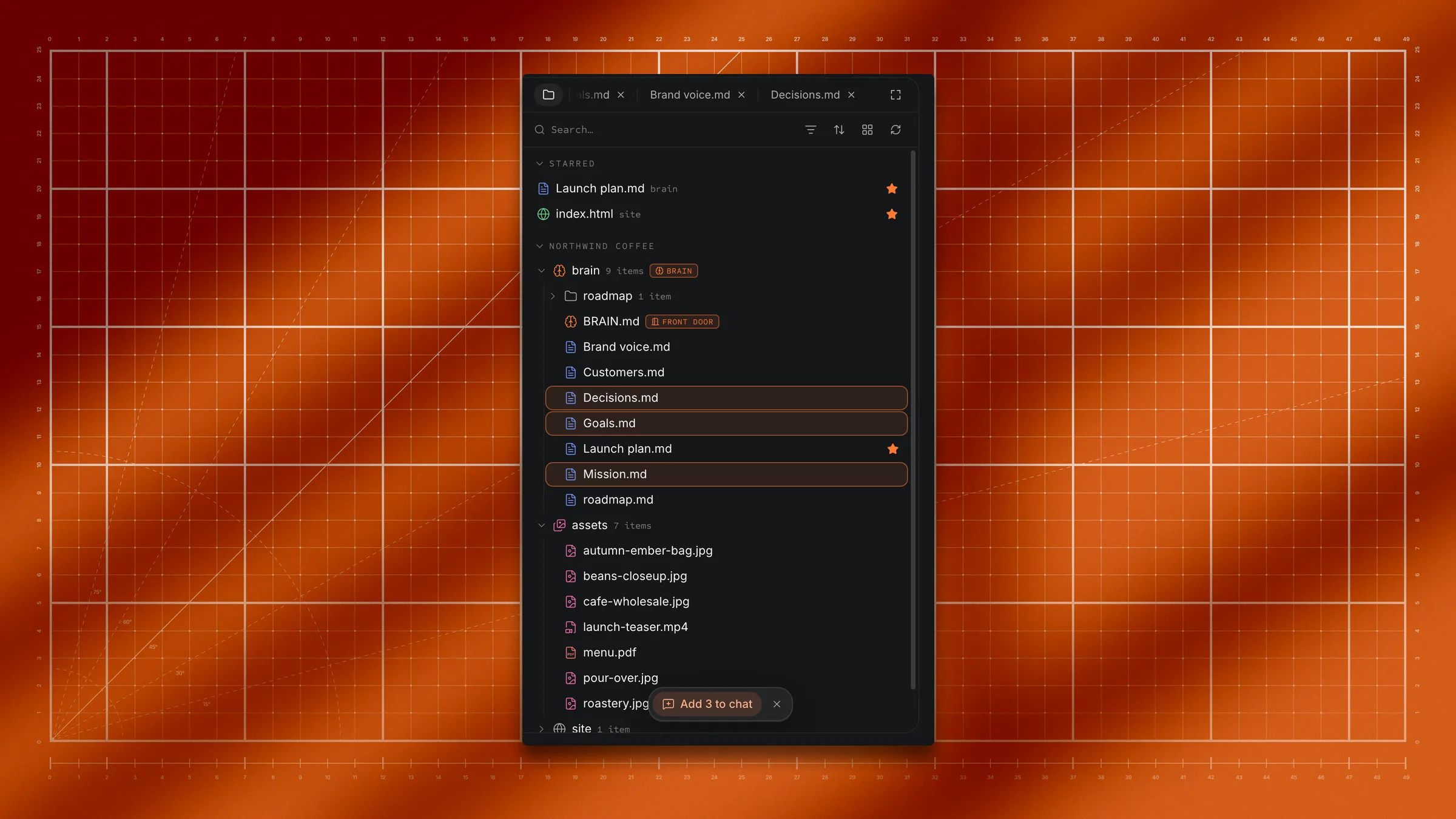
- Several: click the first, then ⌘-click (Ctrl-click on Windows) to add or remove more, or Shift-click to pick a range. A bar appears at the bottom: click Add N to chat. Press Esc, or the bar's ×, to clear the selection.
- Drag: drag rows from the list onto the chat.
See Add files to a chat.
Right-click menu
Right-click any row for:
- Add to chat (or Add N to chat when several are selected)
- Open or Open folder
- Star / Unstar (project files only)
- Reveal in Finder (File Explorer on Windows)
- Copy path: copies the file's full location.
Change or undo it
- Close a file tab: click its ×, or press ⌘W (Ctrl+W) while Files has focus. The Files tab never closes.
- Go back to the list: click the Files tab.
- Undo an edit: open the note's editor and use Version history to restore an earlier version.
Limits
- 20 open files. Opening a 21st closes the one you used longest ago, and Files tells you which.
- Only notes and plain text can be edited here. Code and config files are read-only in Files. Ask the agent to change them.
- Read only folders. In an extra folder set to Read only, notes show Read only: no Edit, and checkboxes can't be ticked.
- Files lists one chat's folders. Every chat in the project sees the project and its pinned folders. Folders added Only in this chat show only in that chat.
Troubleshooting
If a file is missing from the list
Click Refresh. If it's still not there, it may be hidden: open Filter and turn on Show hidden files. Also check no filter chips are on.
If you see "Everything here is hidden or ignored."
The folder only holds hidden files. Turn on Show hidden files in the filter menu.
If you see "File moved or deleted."
The file isn't where it was. Click Close, then find it again in the list.
If you see "This session doesn't have a folder yet, so there are no files to show."
The chat isn't working in a folder. Open a chat in a project.
If clicking a file opened another app
Granular can't show that kind of file, so it opened it in your computer's usual app for it.
If a note changed while I was editing it
Both you and the agent wrote to the same file. Use suggest and send to agent to hand your edits to the agent instead.