 Granular
Digital brain
Give your AI agent a memory of your project: a digital brain is a folder of linked notes on your goals and decisions that every agent reads before it starts.
Updated 2026-10-20
A digital brain is a folder called brain inside your project. It holds a front page called BRAIN.md that links to short notes about your mission, goals, how you work and what you've decided. Before an agent does real work in the project, it reads BRAIN.md, so you don't have to explain yourself again in every session.
A few words you'll see:
- Note: a plain text file ending in .md (a Markdown file). Markdown is ordinary text with a few simple marks, such as
#for a heading. Any text app can open it. - BRAIN.md: the brain's front page. It stays short and points to the other notes.
- Wikilink: a note's name in double square brackets, like
[[Goals]]. It means "see the note called Goals", and it's how notes link to each other.
Why agents read it
Agents start every session knowing nothing about you. A brain gives them standing context:
- what the project is for and what "done well" looks like
- what matters right now
- how you like work done
- decisions already made, and why, so they aren't reopened
When a project has a brain, the agent is instructed to read BRAIN.md first, then open only the notes the task needs. It doesn't read every note every time. When it learns something that will stay true, such as a new goal or a decision, it's asked to offer to file it in the brain and tell you where it put it.
Add a brain to a project
There are four ways. Each one copies a starter set of notes into a brain folder in your project. Existing notes are never overwritten, so it's safe to run on a project that already has some.
When you first open Granular
- Choose Personal OS, name it, and click Create Personal OS & continue →. The new folder comes with a starter brain about you.
- Or choose Use a project and pick a folder. If it has no brain yet, Granular asks Add a Project Brain to …? Click Install Project Brain →, or Not now to skip. If the folder already has a brain, Granular uses it and changes nothing.
From an empty chat
A new session in a project without a brain shows starter cards. Click the Project Brain card.
From the Library
- Click the book icon near the bottom of the project rail (Library).
- Check Installing into at the top right shows the right project.
- Find Project Brain or Personal Brain and click Install.
By asking
In any session, type something like "Set up a digital brain for this project." The agent can create the folder and notes for you.
Which brain to choose
| Project Brain | Personal Brain | |
|---|---|---|
| About | One project or product | You, across everything |
| Starts with | BRAIN.md, Mission, Goals, How We Work, Decisions, roadmap | BRAIN.md, About Me, Mission, Goals, Projects, How I Work, People, Decisions, roadmap |
| Right after install | A session starts. The agent looks through your project's existing documents and proposes what to fold in, then waits for your go. | Granular opens your roadmap in Brain. |
Both include a roadmap note, which is what the Roadmap board shows.
What you'll see
Granular shows a short message, for example "Project Brain installed into brain/." In your project folder there's now a brain folder with the starter notes. The notes start mostly empty, with headings to fill in.
When the Project Brain session looks for existing documents, it never moves or deletes them. It links to them and summarizes them instead. If there's little to pull in, it says so. The brain fills up as you work.
What goes in it
Keep each note to one idea, and keep what's true now:
- Mission: why the project exists.
- Goals: what matters this stretch.
- How We Work (or How I Work): standards, routines, preferences. For example, "always write in British English" or "never publish without asking me".
- Decisions: choices made, with the reason.
- People (Personal Brain): who matters and why.
- Anything else you want agents to know. Add a note and link it from BRAIN.md.
Don't put passwords or API keys in the brain. Those belong in the Vault.
How notes link
To link to a note, write its name in double square brackets, without the .md. [[How We Work]] points to the note How We Work.md.
- In BRAIN.md, a line like
What matters this stretch → [[Goals]]sends agents (and you) to the Goals note. - In the note reader, a wikilink is clickable and opens that note.
- On the map, each wikilink draws a line between two notes.
Every note should be reachable from BRAIN.md in a click or two. A note nothing links to is easy for agents to miss.
See your brain
- In a session, click the Brain icon at the right of the title bar.
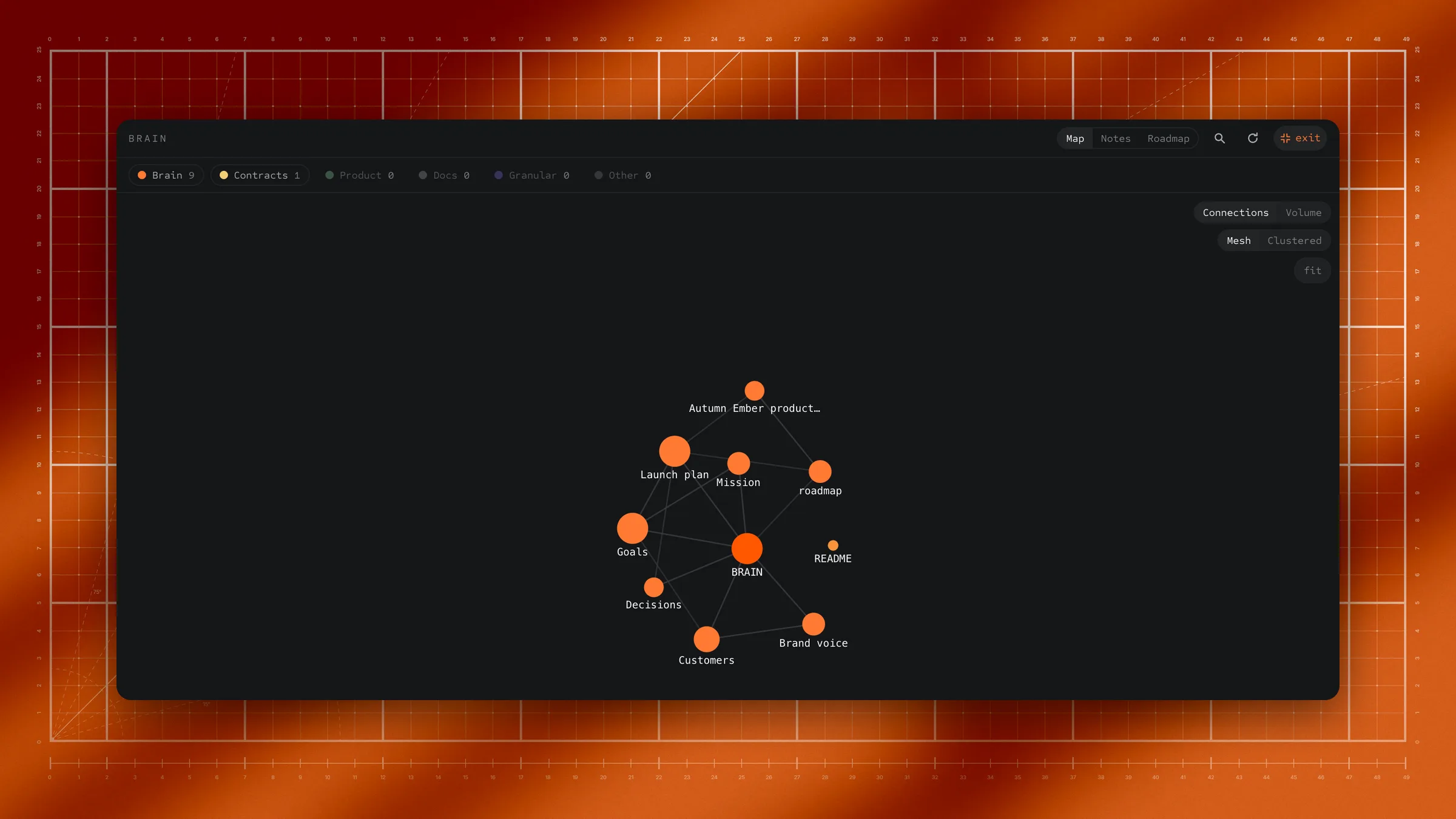
- Brain opens on the Map. Use the switch at the top to change view:
- Map: every note as a dot, every wikilink as a line.
- Notes: every note in the project, grouped by folder, with the agent's instruction files first.
- Roadmap: your roadmap board.
Brain looks through your whole project, so the map stays the same whichever folder the agent is working in.
By default the map and the list show only the Brain and Contracts groups. Use the coloured chips to show or hide others (Product, Docs, Granular, Other). In the map:
- The map opens fitted so you see the whole brain. Drag (or scroll with two fingers on a trackpad) to move around. Pinch, or use a mouse wheel, to zoom.
- Click a dot to highlight it. Click it again, or double-click, to open the note.
- Connections or Volume sizes dots by how many links they have or by how long the note is.
- Mesh or Clustered changes the layout. The dots glide to their new places.
- fit brings the whole brain back into view.
To search, click the magnifier and type in Search notes…. Matching notes stay bright on the map and the list narrows to them.
Agents can open the map for you too. After changing the brain, they're asked to show it.
Open a note
Click a note in Notes, or open it from the map. It opens in its own tab in Files, where you can read and edit it. The round back arrow at the top left of the note brings you back to Brain. See Files.
In Notes, hover a note and click Add to chat to point the agent at it, or drag it onto the chat. See Add files to a chat.
Edit it yourself
- Open Brain and click a note (in Notes or on the map). It opens in Files.
- Click the pencil (Edit) at the top of the note.
- Type your changes. The toolbar has buttons for headings, bold, lists and links. Changes save as you type.
- Click done.
Changed your mind? Click the clock icon (Version history) in the editor, pick an earlier version, and click restore this. Restoring keeps a copy of the current text too, so a restore can be undone.
Prefer the agent to make the change? Tick suggest in the editor, write your changes, and click send to agent. The agent works them into the note for you. While suggest is ticked, your typing isn't saved to the file, and closing the editor asks before discarding unsent changes.
You can tick a note's checkboxes right in the reader, without opening the editor.
When an agent changes a note you have open, the new text appears by itself and the changed part is briefly marked. See Files.
You can also edit the notes in any text or Markdown app, such as Obsidian. They're ordinary files.
Change or remove it
- Rename or move a note: update every wikilink that points to it, or ask the agent to rename it and fix the links.
- Remove a note: delete the file and remove its links from BRAIN.md, or ask the agent to.
- Remove the whole brain: delete the brain folder in your project. Uninstalling a brain from the Library never deletes your notes.
Is it private?
- The brain is ordinary files in your project folder, on your computer. Granular doesn't upload it, and signing in to a Granular account doesn't copy it anywhere.
- When an agent reads a note, the note's text is sent to the AI model the session uses, the same as anything you type in the chat.
- If you back your project up online, for example to GitHub, the brain folder goes with it like any other folder.
- It's never published unless you publish a note yourself.
Limits
- Granular looks for brain/BRAIN.md, or BRAIN.md directly in the project folder. A brain anywhere else isn't picked up automatically.
- Agents read notes as they need them, not all at once. Keep BRAIN.md short and well linked.
Troubleshooting
If the agent doesn't seem to know what's in the brain, check the front page is named exactly BRAIN.md and is inside the brain folder (or directly in the project folder). Then ask: "Read BRAIN.md and tell me what you know about this project."
If you see "No links between notes yet. Connect them with [[wikilinks]]" on the map, your notes don't link to each other yet. Add [[Note name]] links to BRAIN.md, or ask the agent to link them.
If the map looks empty, the notes may be in a hidden group. Click Brain in the legend chips to show them, or switch to Notes.
If you see "Showing … of … notes. Turn a group off to see more.", the map draws up to 400 notes at once. Hide a group with the legend chips to see the rest.
If a new note doesn't appear, click Brain's refresh button.
If you can't find Docs in this folder, it's now Brain: the brain icon at the right of the title bar.
If installing a brain didn't change your existing notes, that's expected. Existing notes are never overwritten. Only missing starter notes are added.
If the Project Brain card isn't in an empty chat, the project already has a brain.